

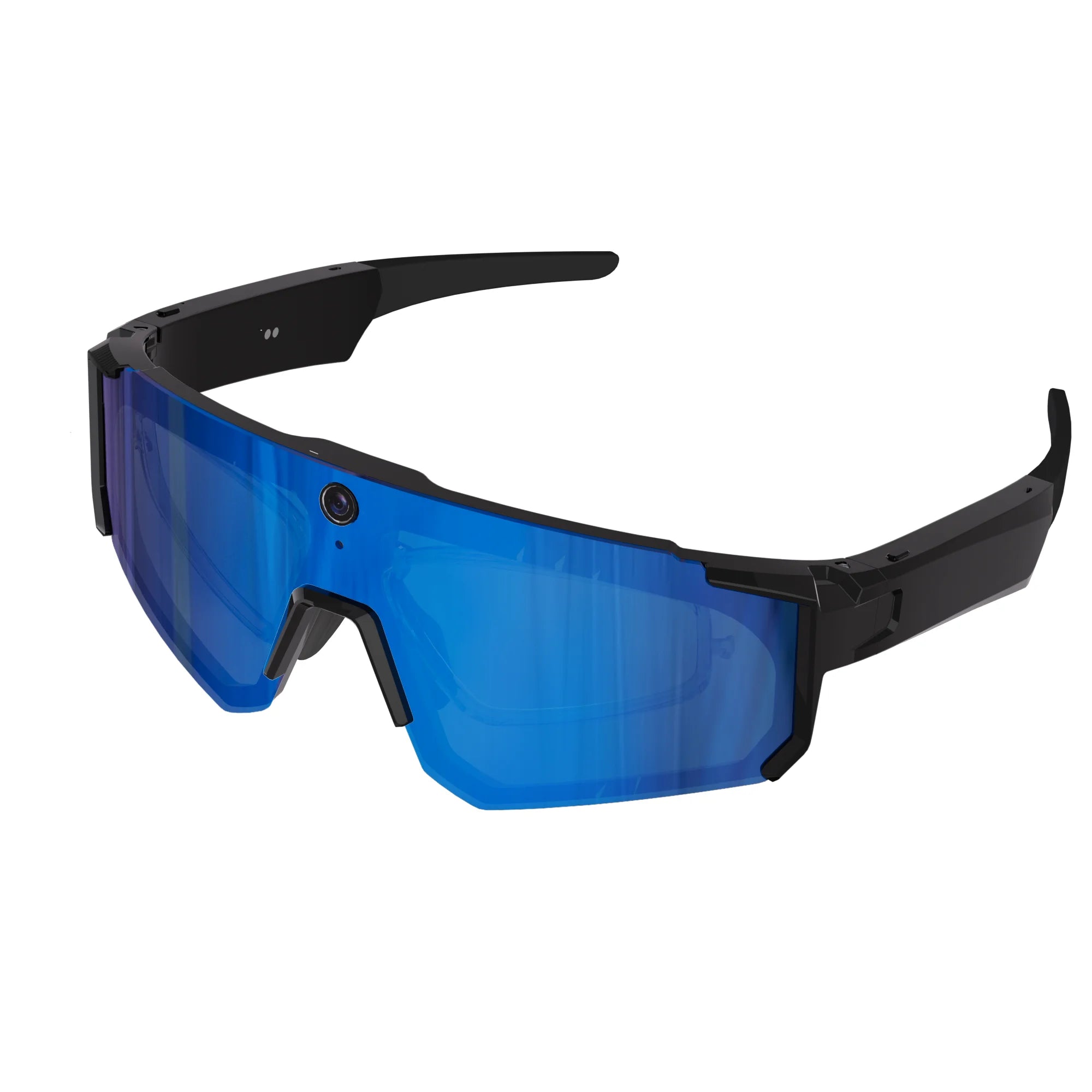
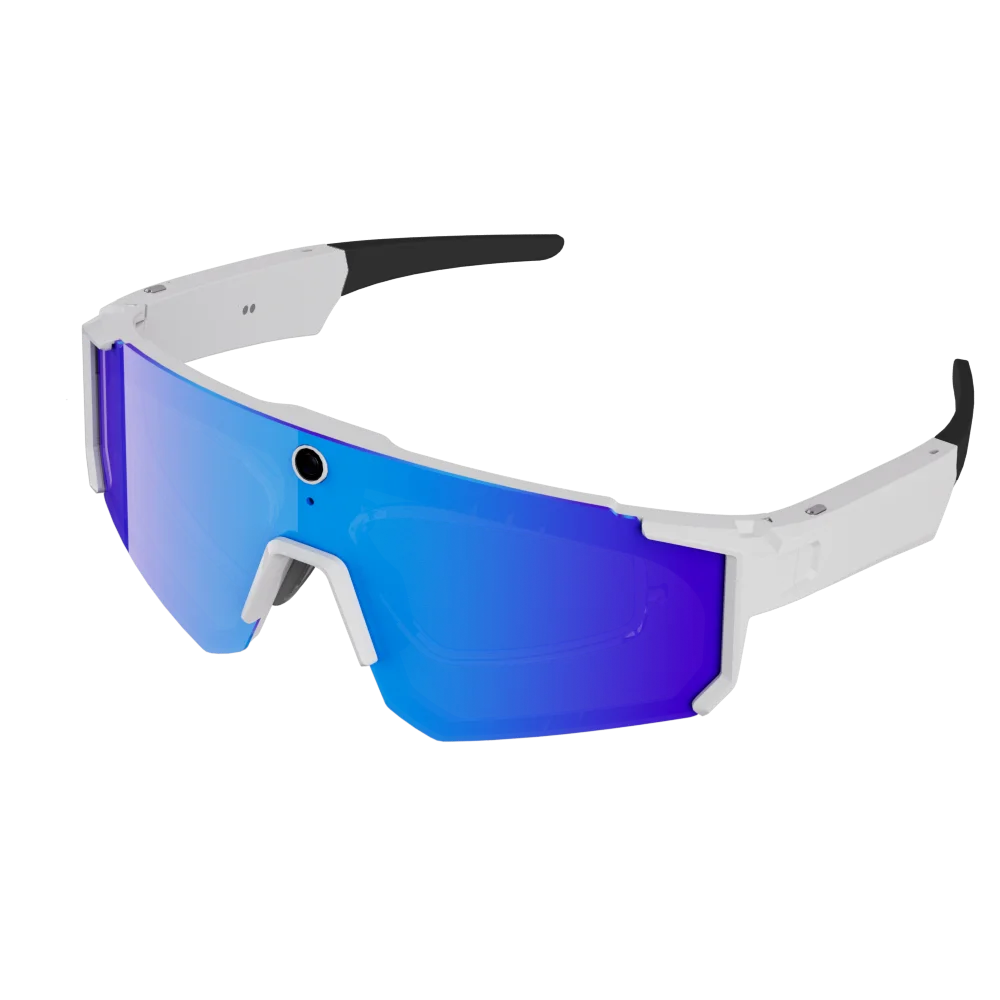
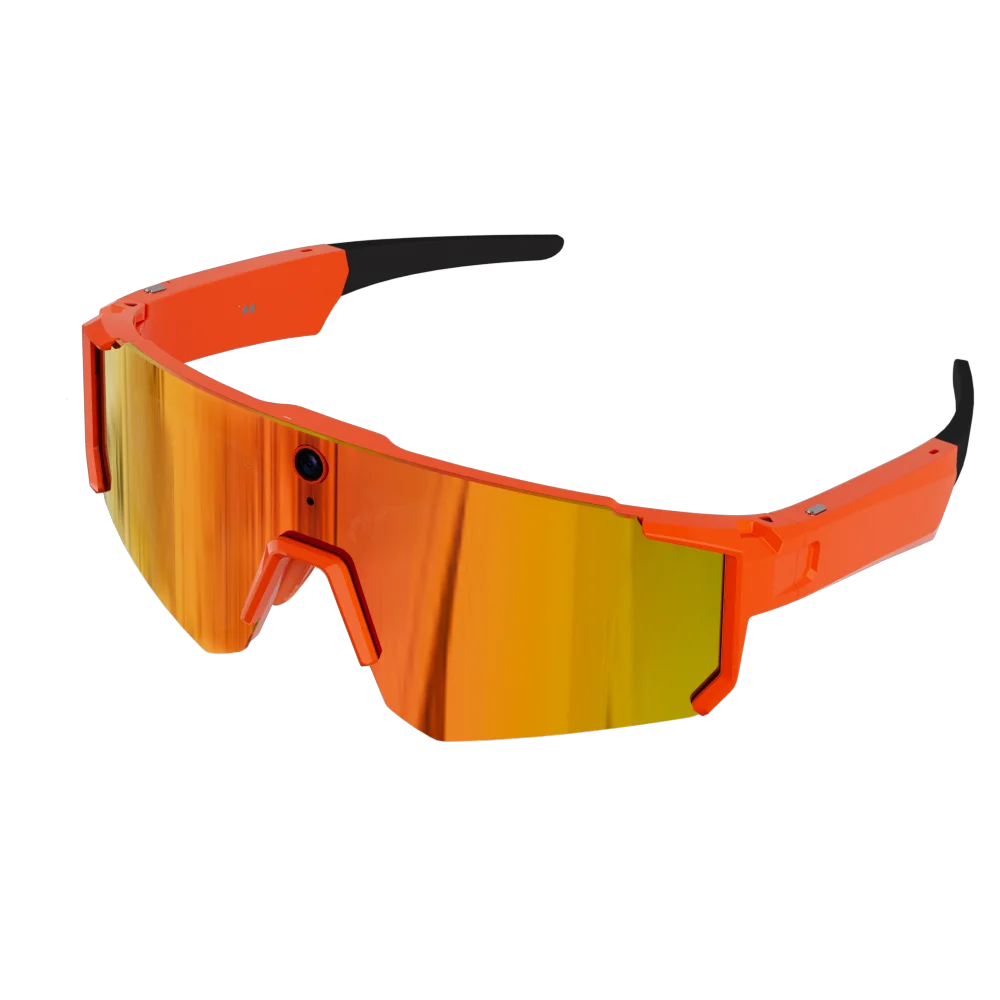
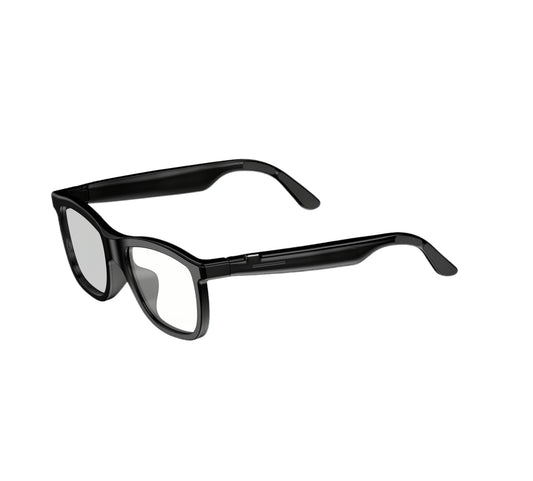
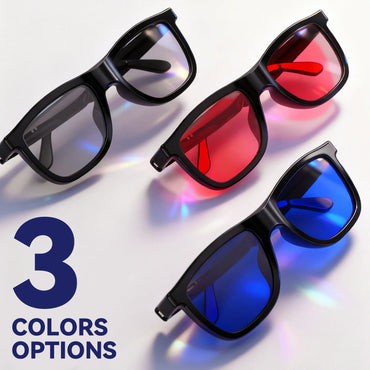
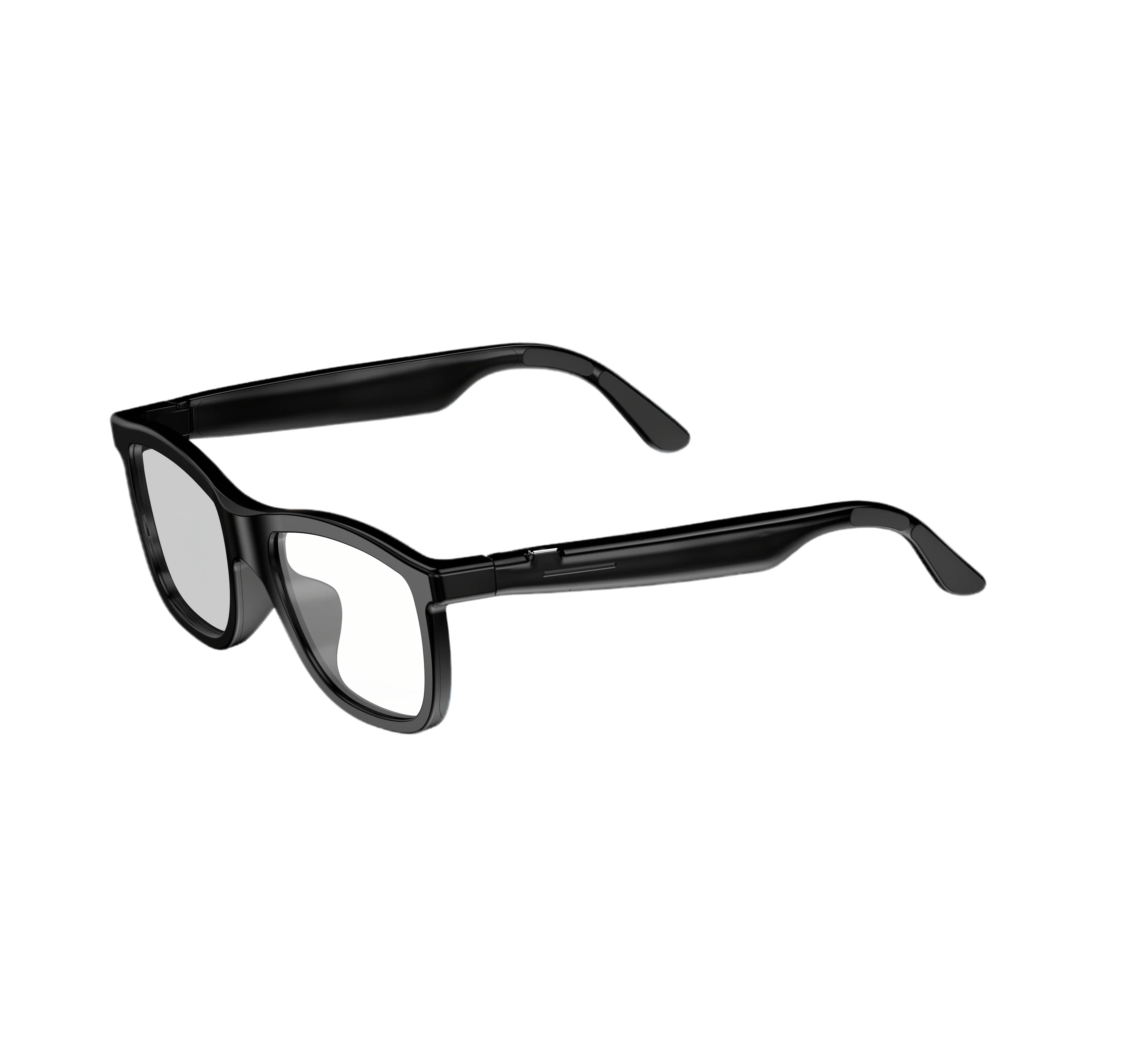
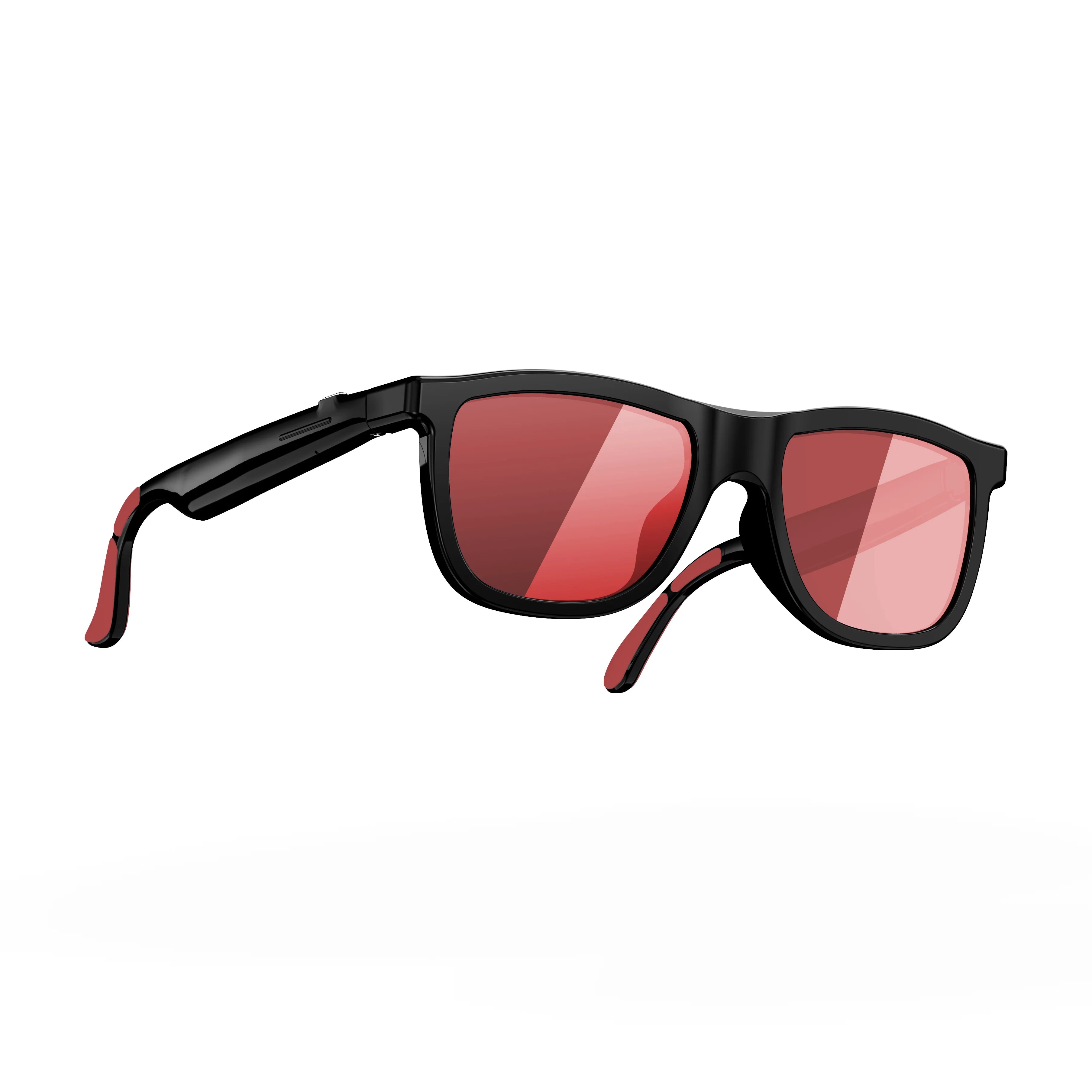
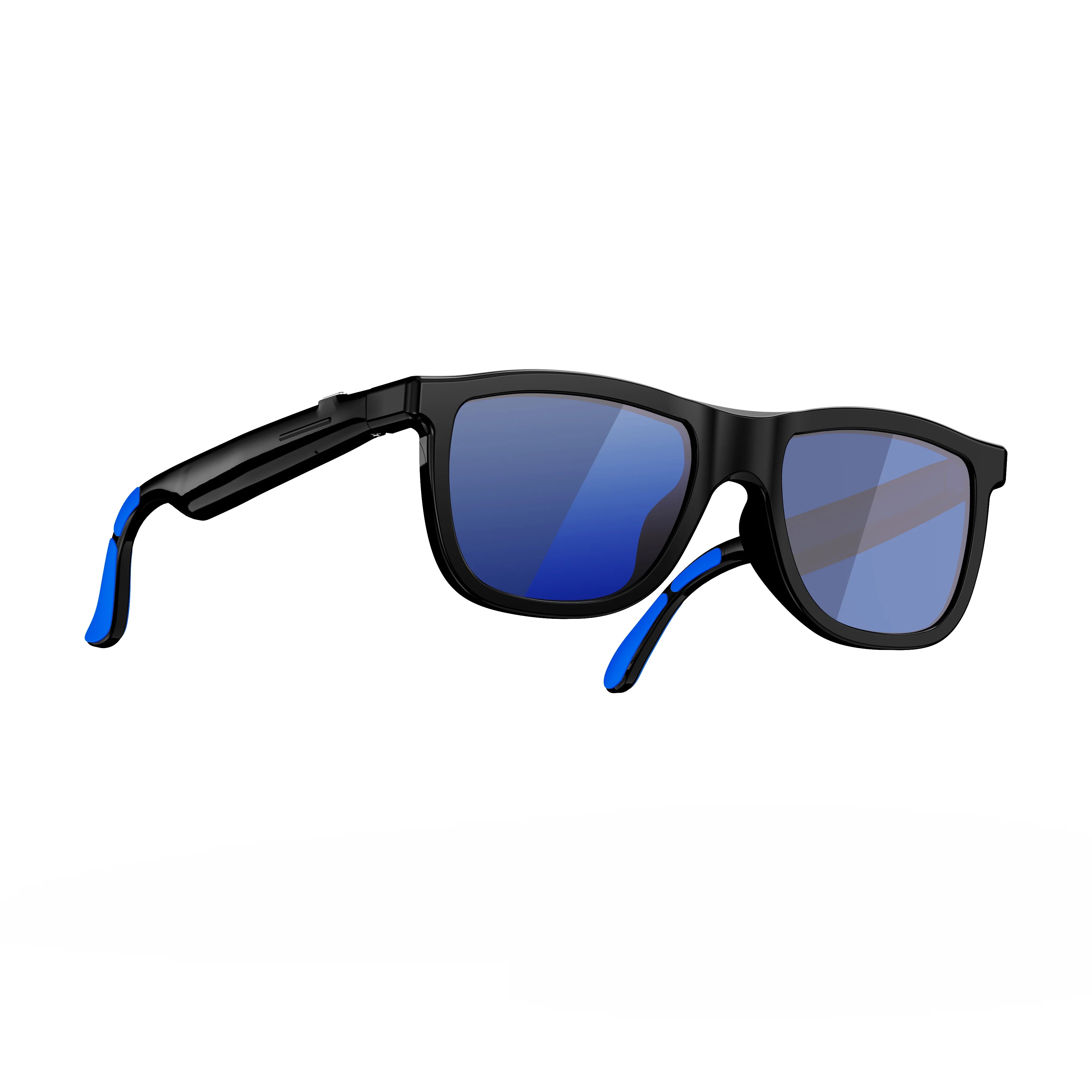


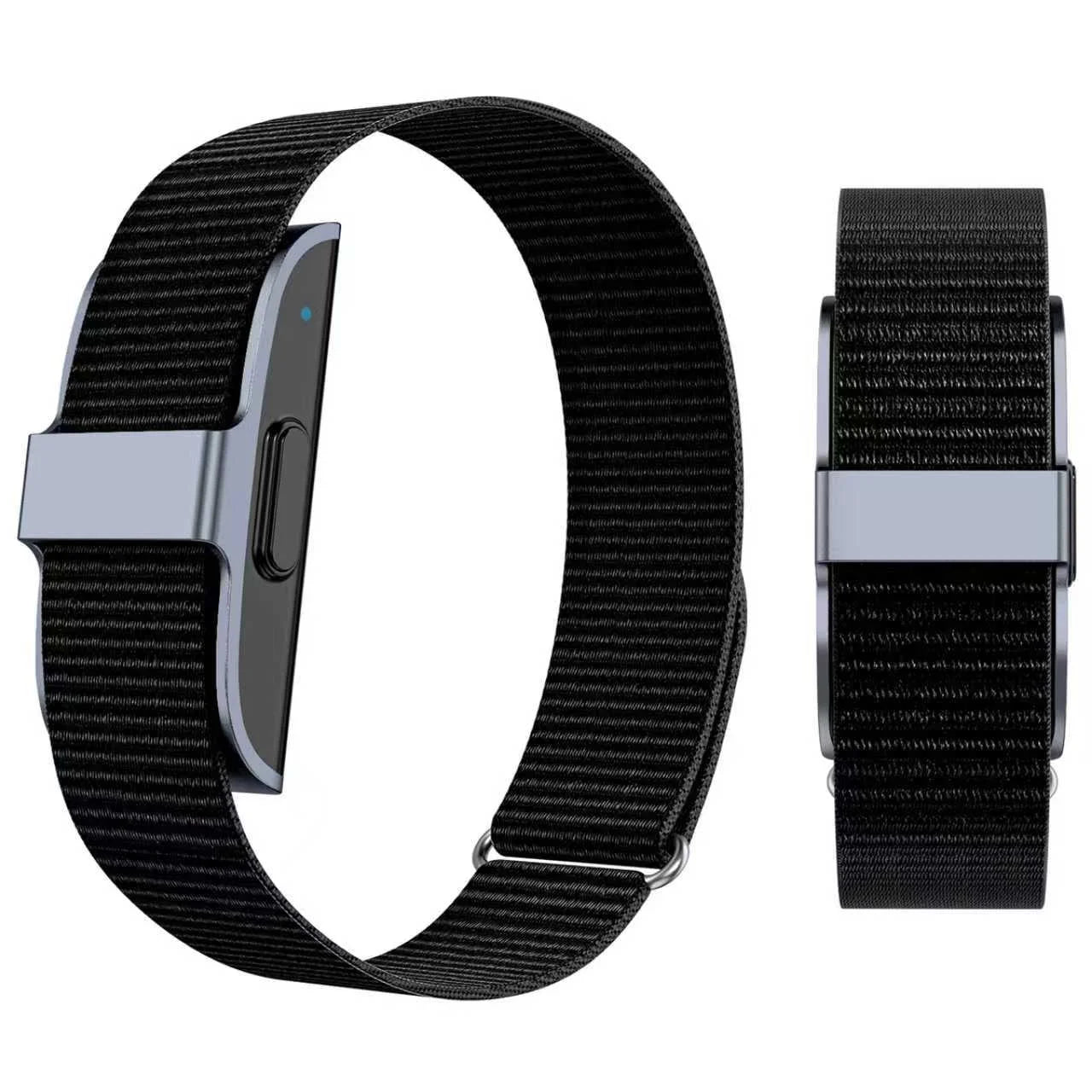


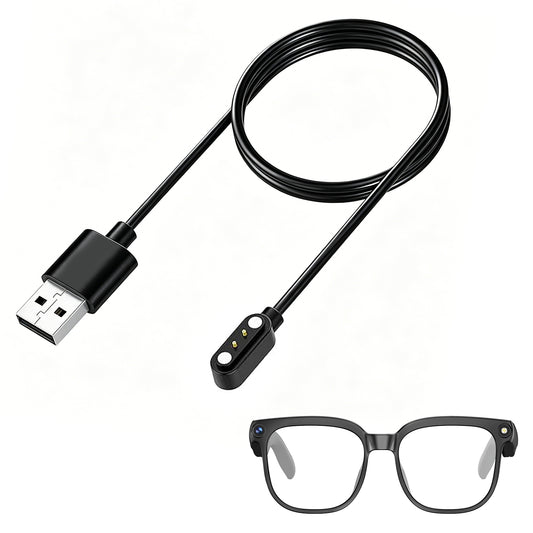
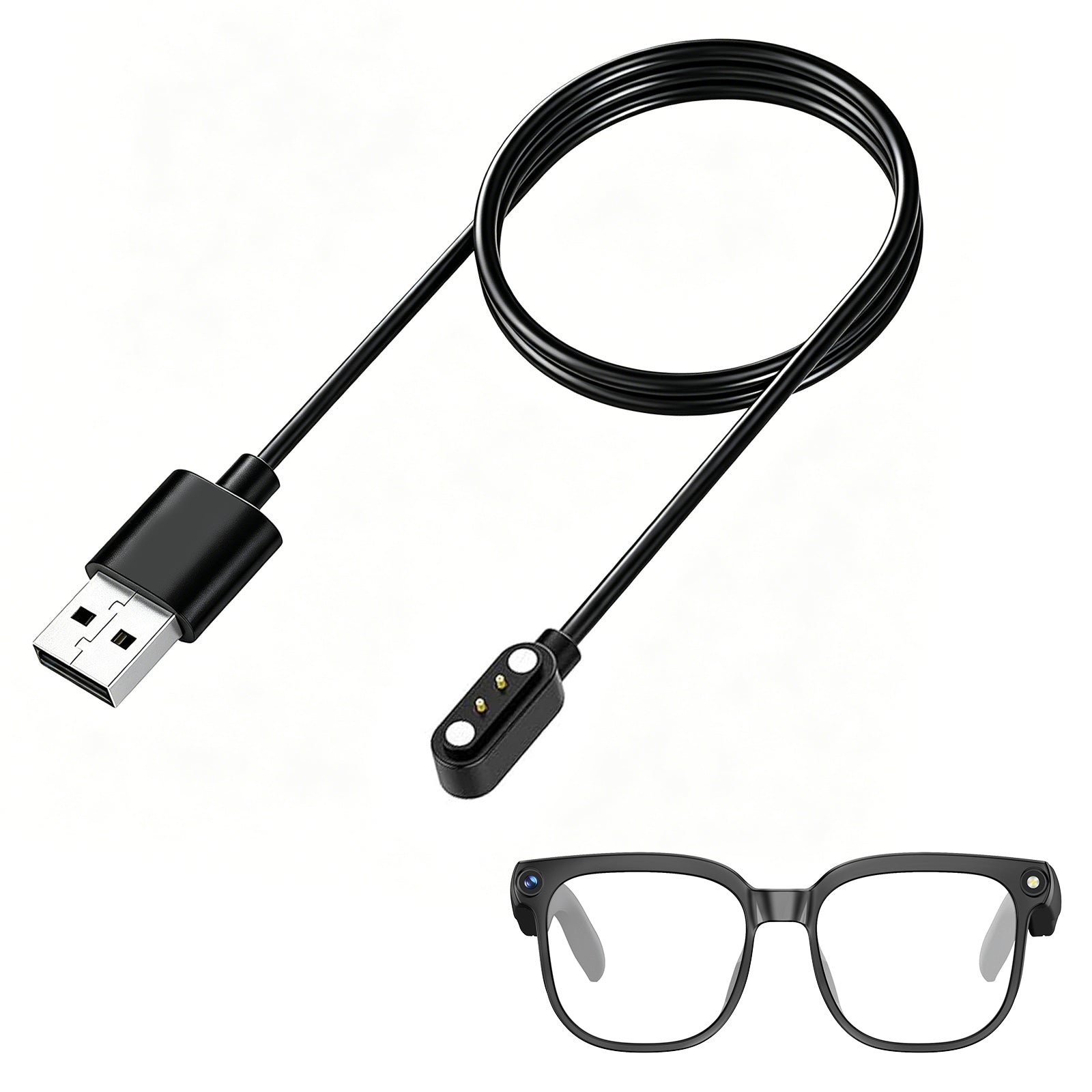
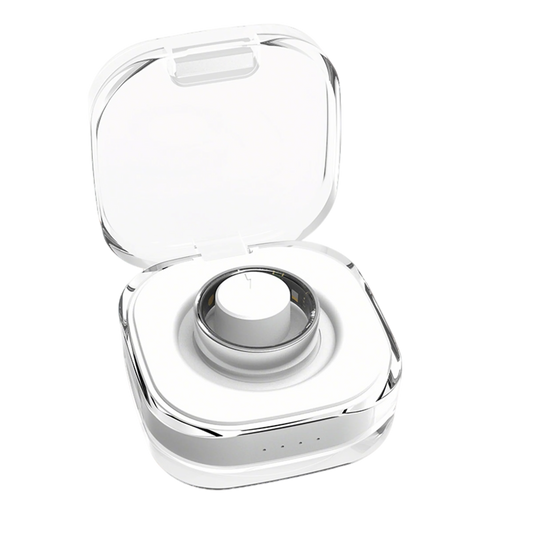

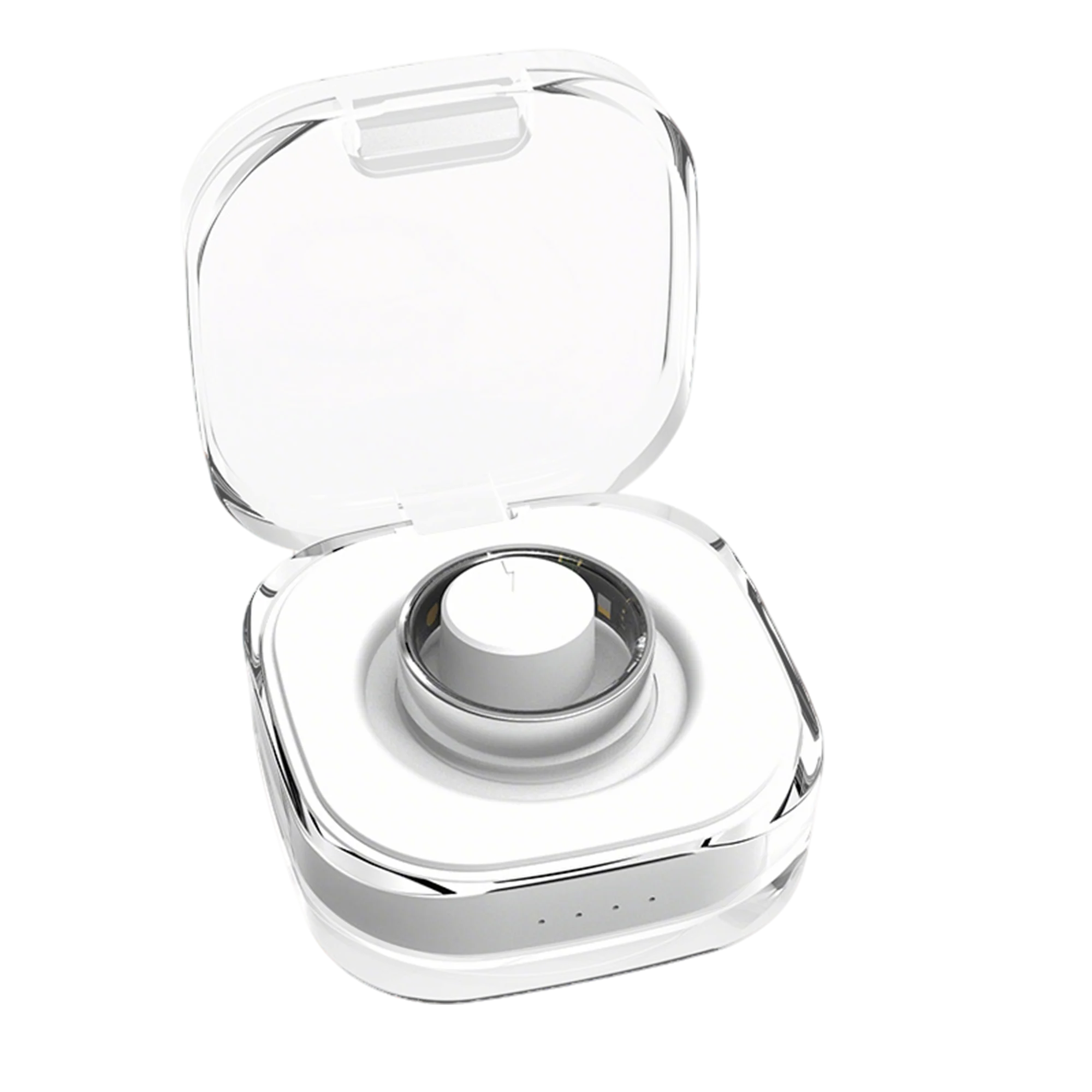


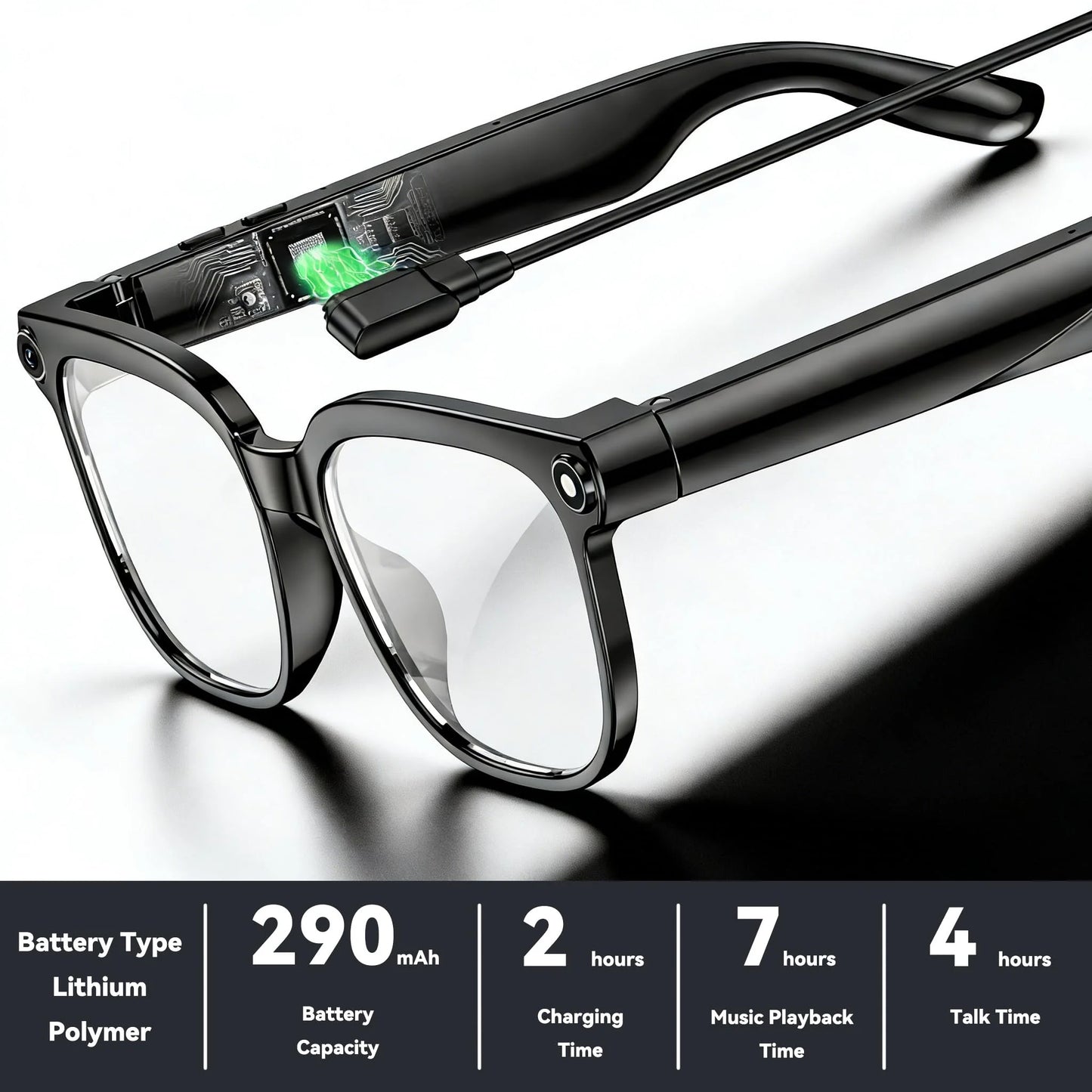
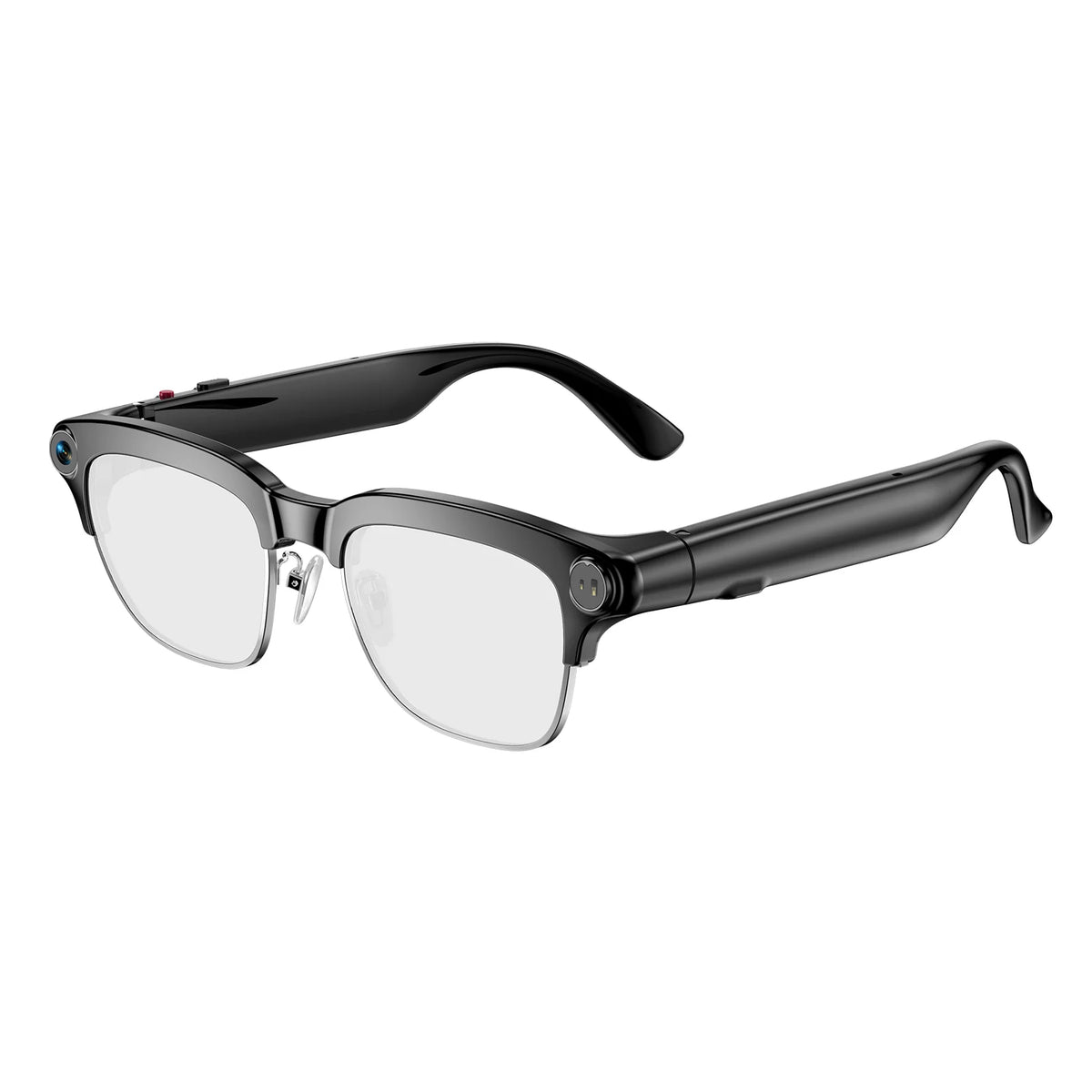
Osawalla Daily Pro Camera Glasses
SKU:Full-Rim Glasses
Couldn't load pickup availability


Your AI Everyday Companion
Capture Life Hands-Free
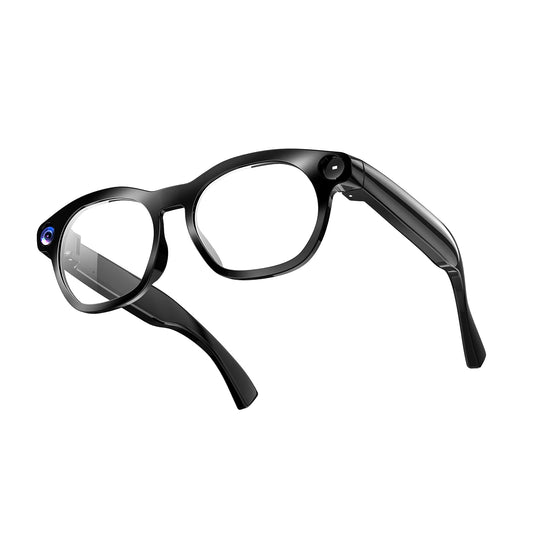
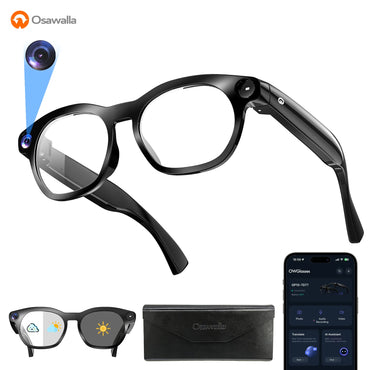
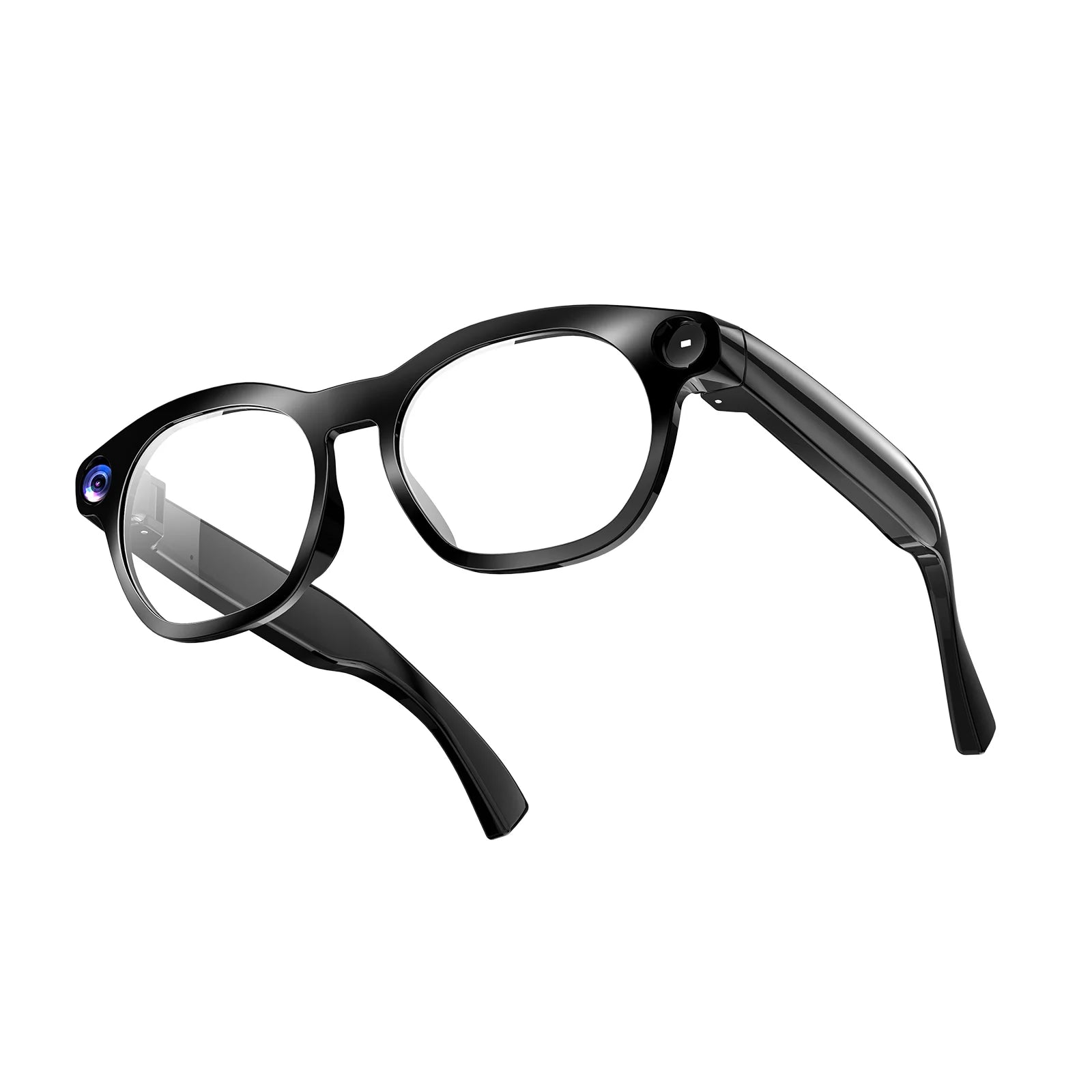
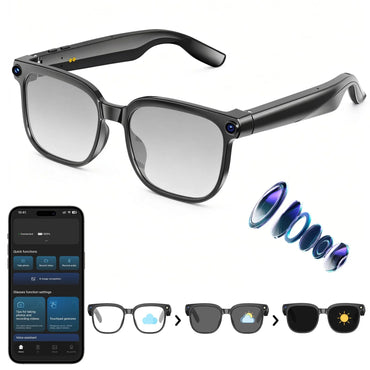
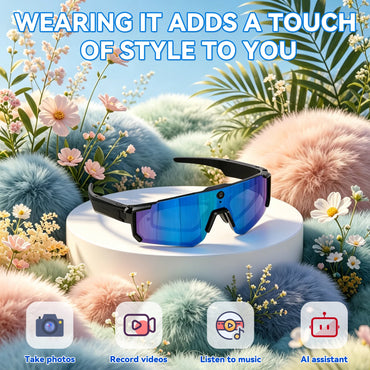
8MP camera with 1080P video lets you capture moments from your perspective.
AI That Understands Your World
ChatGPT AI, object recognition, and 139+ language translation help you understand and interact with the world around you.
Stay Connected, Stay Aware
Open-ear audio with Bluetooth 5.4 keeps music and calls hands-free while staying aware of your surroundings.
Lightweight All-Day Comfort
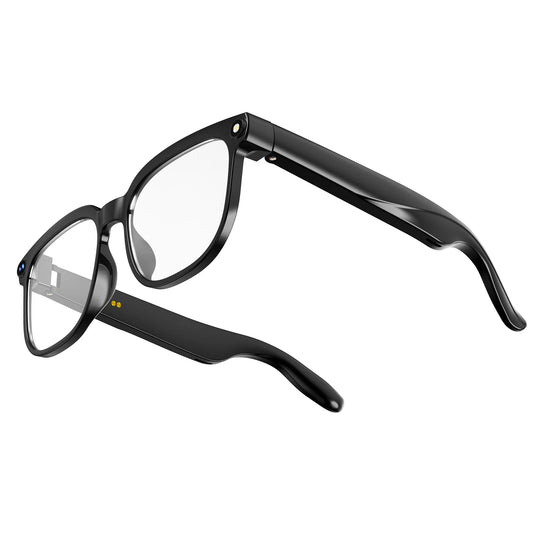
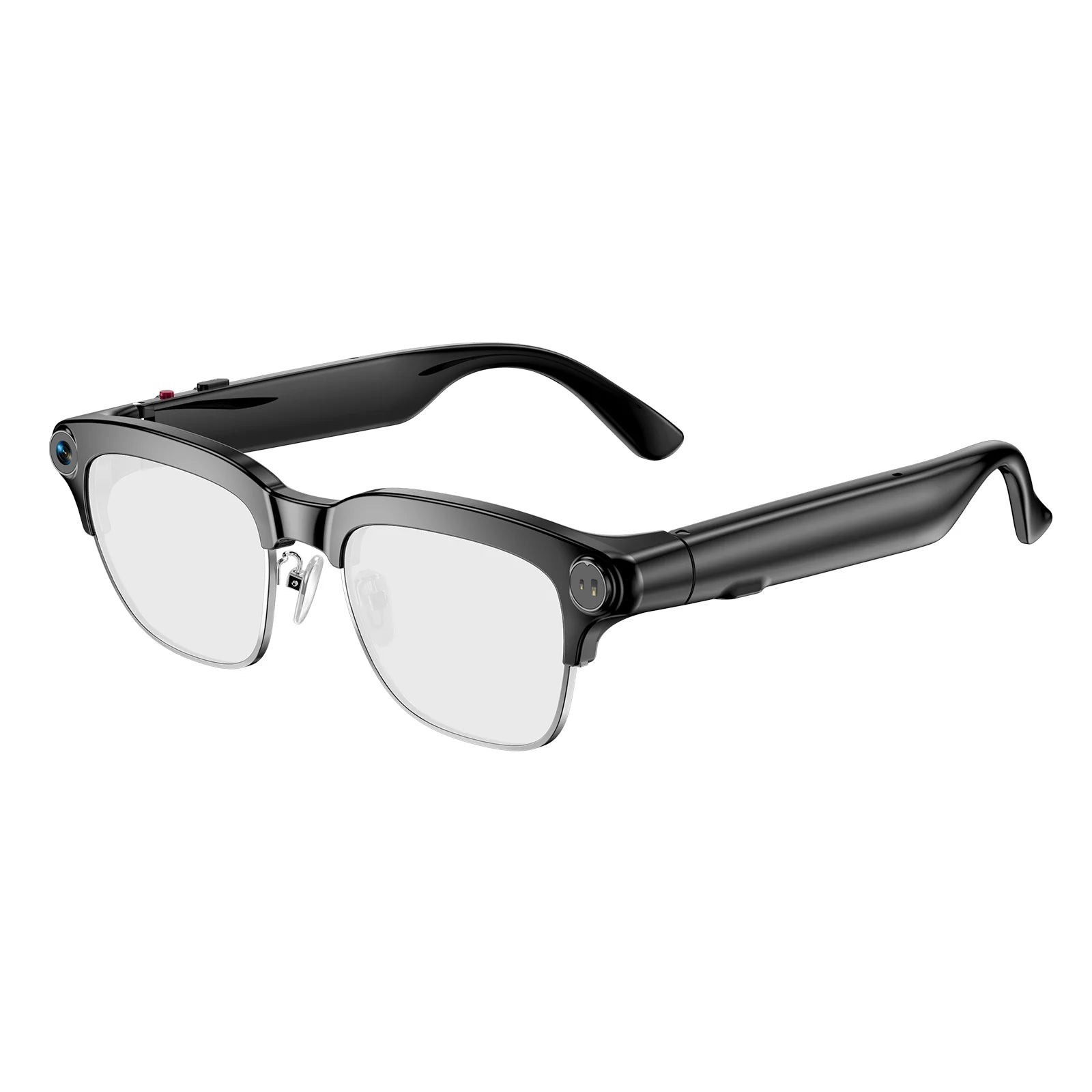
40.8g TR90 frame with IP65 protection, designed for commuting, travel, and everyday wear.
Adapt to Changing Light
Photochromic lenses automatically adjust for indoor and outdoor environments
- Free Shipping
- 30-day easy return
- 1-Year Warranty






Im really loving the Product
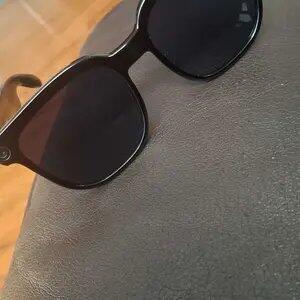
Really impressed with these glasses. The camera quality is great and the photochromic lenses work perfectly. The AI controls are simple to get used to.
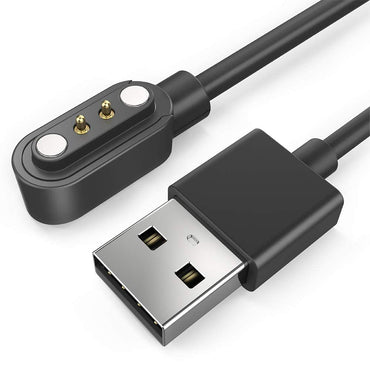
The charging cable that comes with it is too short. I need to use an extra long cable when I’m out sightseeing. Still, it’s a great travel companion and I’d recommend it.

I am completely blown away by these smart glasses! The 1080P camera captures incredibly sharp videos and photos from my exact point of view, making it perfect for hands-free vlogging. The open-ear Bluetooth audio delivers clear sound for music and calls while letting me stay aware of my surroundings. Inicio de la cita destacada:I also love the photochromic lenses; they transition perfectly from clear indoors to dark sunglasses outside.Fin de la cita destacada The AI translation feature works like magic during travel. They are lightweight, stylish, and packed with high-tech features. Highly recommend them to anyone looking for a premium tech gadget!
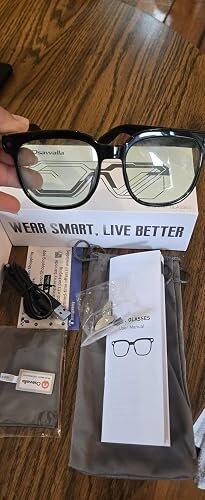
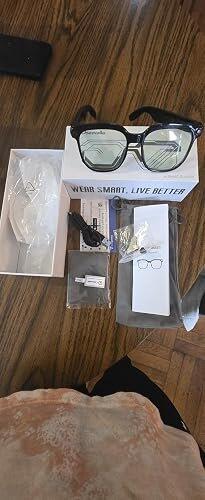
I like the design because they look more like natural, everyday glasses and less like obvious technology. The modern wire-frame rims are stylish and, in my opinion, work well for both men and women.
The 8MP camera produces adequate photos with decent color and depth in natural lighting. For me, the camera is primarily useful for documenting things for later recall—such as comparison shopping or capturing business hours and signage. If I want a great photograph, I'll use my cell phone.


I really like these smart glasses. They have a modern, lightweight design and are very comfortable to wear throughout the day. I find the camera very convenient for taking photos and recording videos without having to take out my phone. Another feature I really like is the photochromic lenses, which adapt to the light and darken when you’re outdoors. They also allow you to listen to music and make calls via Bluetooth.
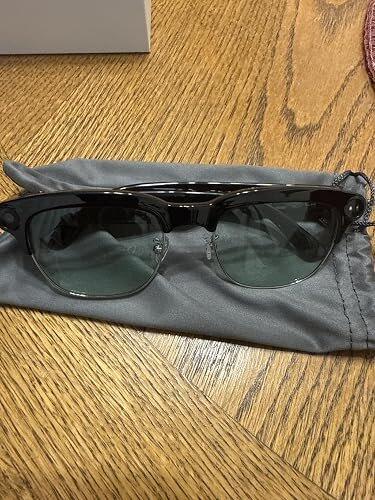
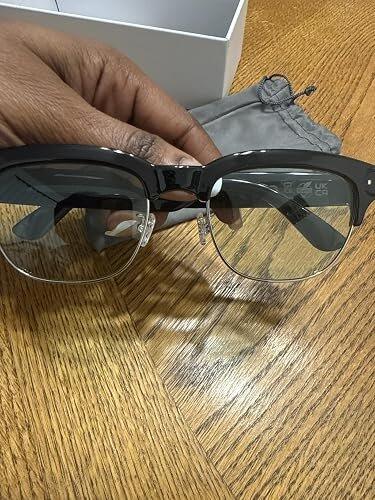
Better than expected! Shipping was fast and the videos are so clear
I am completely blown away by these smart glasses! The 1080P camera captures incredibly sharp videos and photos from my exact point of view, making it perfect for hands-free vlogging. The open-ear Bluetooth audio delivers clear sound for music and calls while letting me stay aware of my surroundings. I also love the photochromic lenses; they transition perfectly from clear indoors to dark sunglasses outside. The AI translation feature works like magic during travel. They are lightweight, stylish, and packed with high-tech features. Highly recommend them to anyone looking for a premium tech gadget!
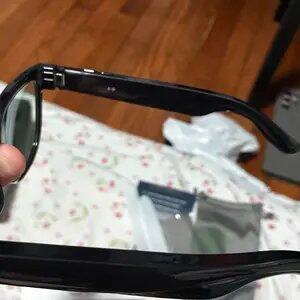
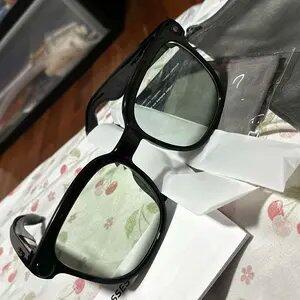
I love technology, and every day I discover even more amazing things! I bought these smart glasses, and they are fantastic. I love the frame design; they are made of sturdy material, and the black color looks great. They come with all their accessories, beautifully presented in their case. The lenses darken based on the intensity of the sunlight and lighten when there isn't any. These glasses let me listen to music and answer calls with a simple tap on the lens; they also take super-sharp photos and record videos and best of all, they feature real-time translation. They are so much fun and highly recommended!
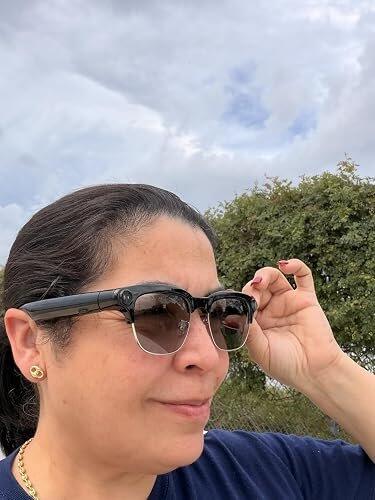
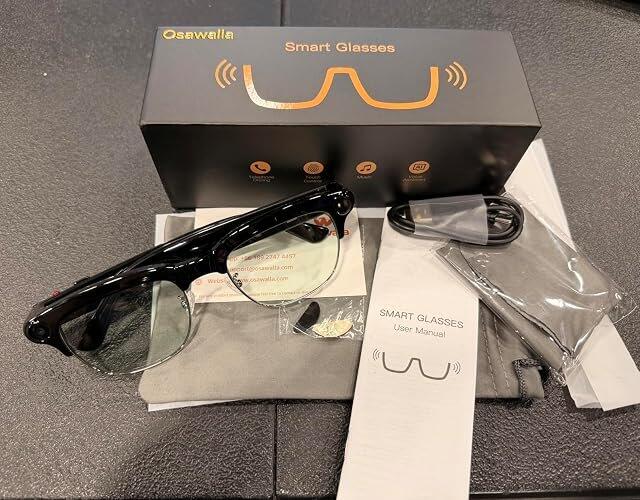

They are really nice & light weight I plan to use on my cruise to record as I make my podcast so excited
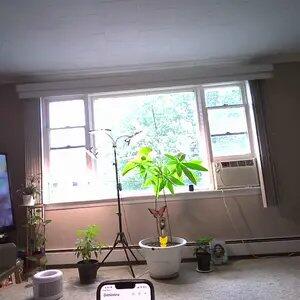
I've had these glasses for a little over a month. These glasses are amazing. The quality of the music plays loud, they're very study and durable. Hey Cyan works well. They also transition when you're out in the sun but not too dark just a little shaded.
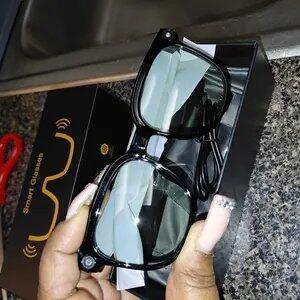
Tried out my friend’s RayBan Meta glasses and he even told me to try the cheaper version. I’m glad I did. Video quality is the same, speakers near the ear sound the same and the price is 25% the cost.
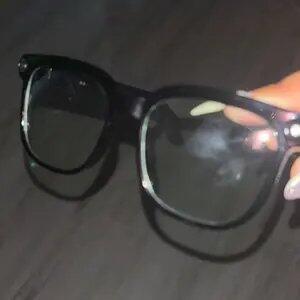
Works audio translation these are amazing hands-free video records camera amazing

Great quality and battery life
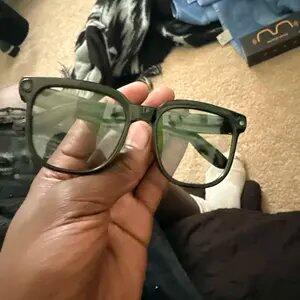
Good sound and quality recording
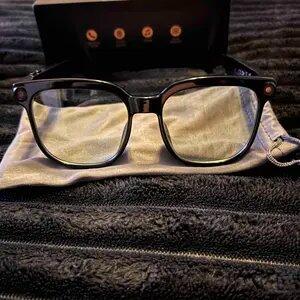
Me encantan son ideales los recomiendo 👍
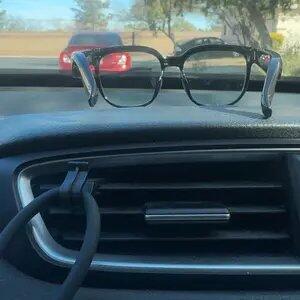
Great glasses there actually good quality, I would recommend it, if you guys are willing to sponsor I’ll do video with your glasses on and do my everyday life working and you guys and get all the views of these beautiful house I help build

satisfied The Camera quality isn’t that bad and They tint when it is bright outside wore them when fishing and the AI is on point

Muy conforme con el producto, vamos a seguirlo probando

I love the cheaper price and the quality of the pictures they take

Both your video and the picture function is amazing.
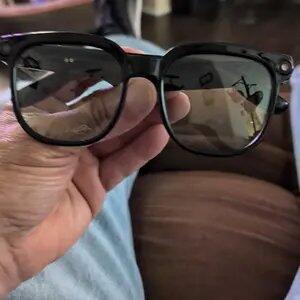
I wasn’t sure what to expect when I ordered these! I am in love. My favorite part is how you can literally answer your phone with them and have your entire conversation through these glasses! Like wow! Also, the line isn’t fuzzy- I can hear the other person and they can hear me just fine! Originally I thought you could only take photos on these and POSSIBLY videos if I was lucky…. No, I was SO wrong. You can do everything with these. I’m totally shocked! My kids and I are currently fighting over them, so I’ll probably purchase a few more pairs 🥰🥰🥰

Great for the day price It also works with light covers made for meta glasses
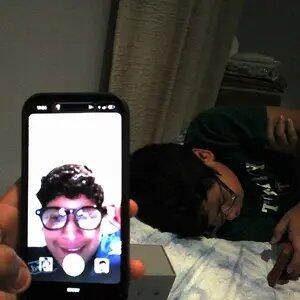
Thanks I love it I give it a 10/10
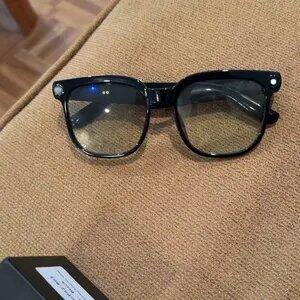


Frequently Asked Questions
(Osawalla Daily Pro Camera Glasses)
No sound coming from the glasses?
1. Confirm the glasses are powered on and connected to your phone.
2. Check your phone's Bluetooth settings to see if the glasses are connected.
3. Try unpairing and re-pairing the glasses.
4. Restart both the glasses and your phone's Bluetooth, then re-pair the glasses.
Do the smart glasses need to be connected to a phone?
Some functions (such as data synchronization, making and receiving calls, and transferring photos) require a Bluetooth/Wi-Fi connection to the phone app, but basic functions (such as taking photos, recording audio, and recording video) can be used independently once connected to the app.
Bluetooth connection failure?
1. Ensure the glasses are in pairing mode (power on the glasses until the indicator light flashes).
2. Delete your phone's Bluetooth history (remove old devices in Bluetooth settings).
3. Restart both your phone and glasses.
4. Try connecting with another phone (to determine if the problem is with the glasses or the phone).
5. Restore factory settings.
Bluetooth frequently disconnects?
1. Use close to your phone (ideally within 3 meters).
2. Turn off other Bluetooth devices (to reduce interference).
3. Update your glasses and the app.
Which app version should I download? System compatibility?
1. For a better user experience, please download the latest version of the app.
2. Your phone system needs Android 9.0 or higher, or iOS 13.0 or higher to install and use.
How do I control taking photos or videos?
1. You can learn how to take photos and videos on the homepage.
2. You can learn how to control it in My - New User Guide.
Can I answer calls? How is call privacy protected?
Bluetooth calls are supported, but open speakers may leak sound. For privacy calls, it is recommended to use a headset or lower the volume.
Will there be a prompt when taking photos/videos/recording audio?
There will be a prompt via indicator light or sound, but please be aware of local privacy regulations to avoid unauthorized filming of others.
Why does WiFi connection fail when importing photos/videos/audio?
1. Ensure your phone's Wi-Fi is turned on and can connect to the glasses' Wi-Fi during import.
2. Ensure both the glasses and your Wi-Fi are up-to-date.
3. Restart the glasses and the app.
Where are photos/videos/audio recordings stored?
1. Primarily stored in the glasses' local memory (temporary storage).
2. After connecting, they can be transferred to the app.
What happens when local storage is full?
It is recommended to periodically connect to the app to sync data. After syncing: Content uploaded to the app will automatically have its local storage space on the glasses cleared and released.
Will synced content be lost?
No, storage is permanent unless you manually delete it.


