

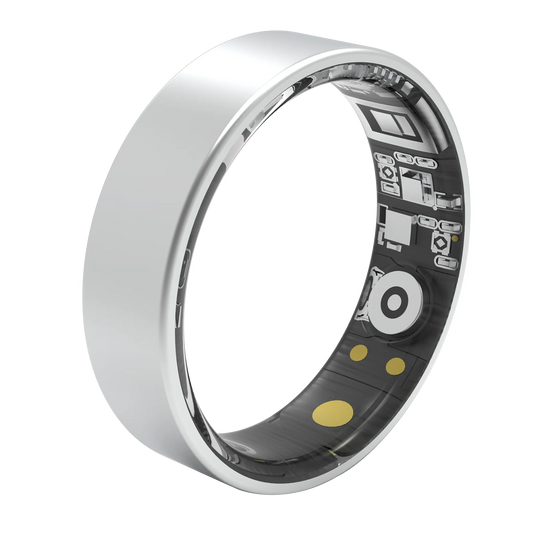
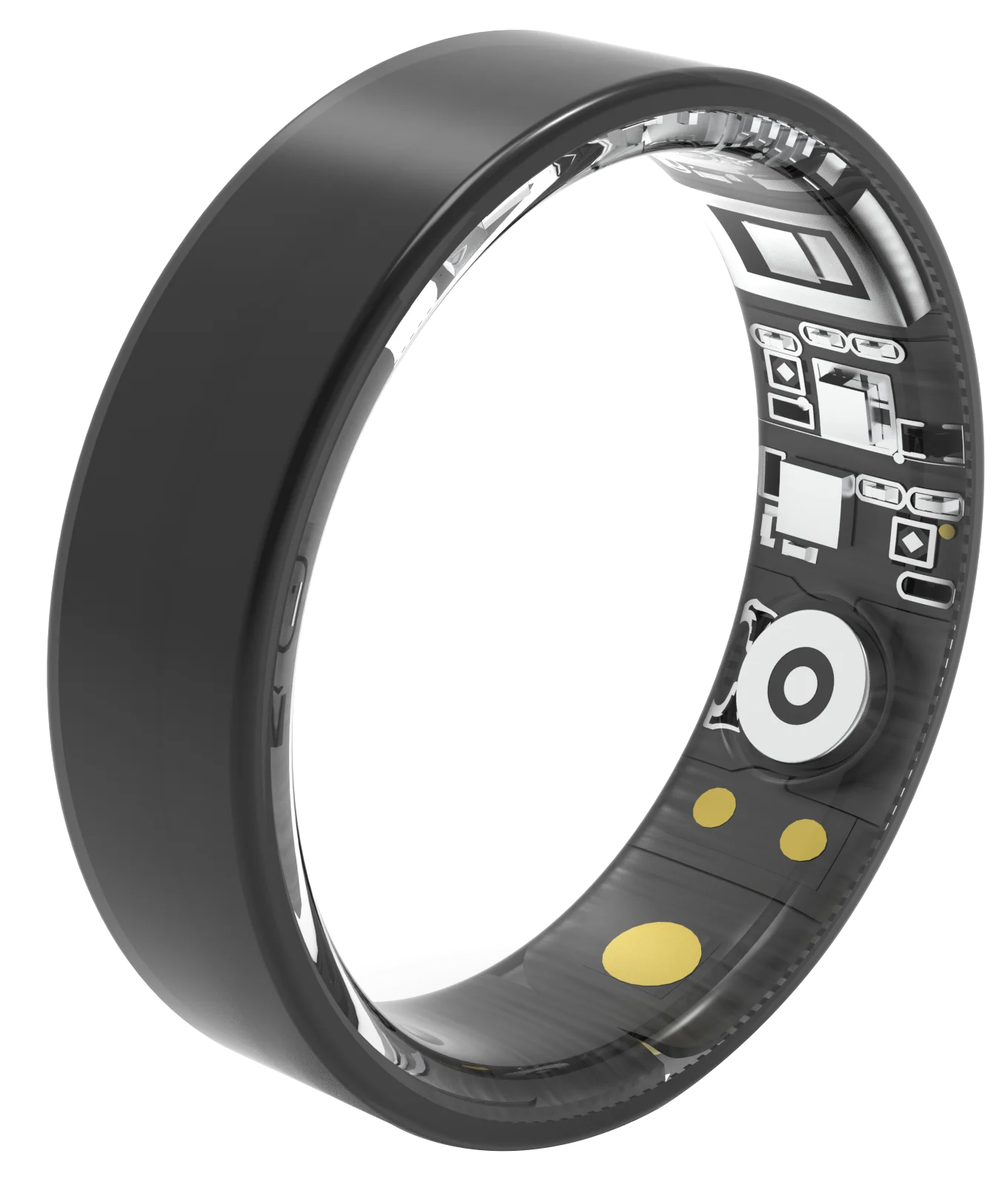
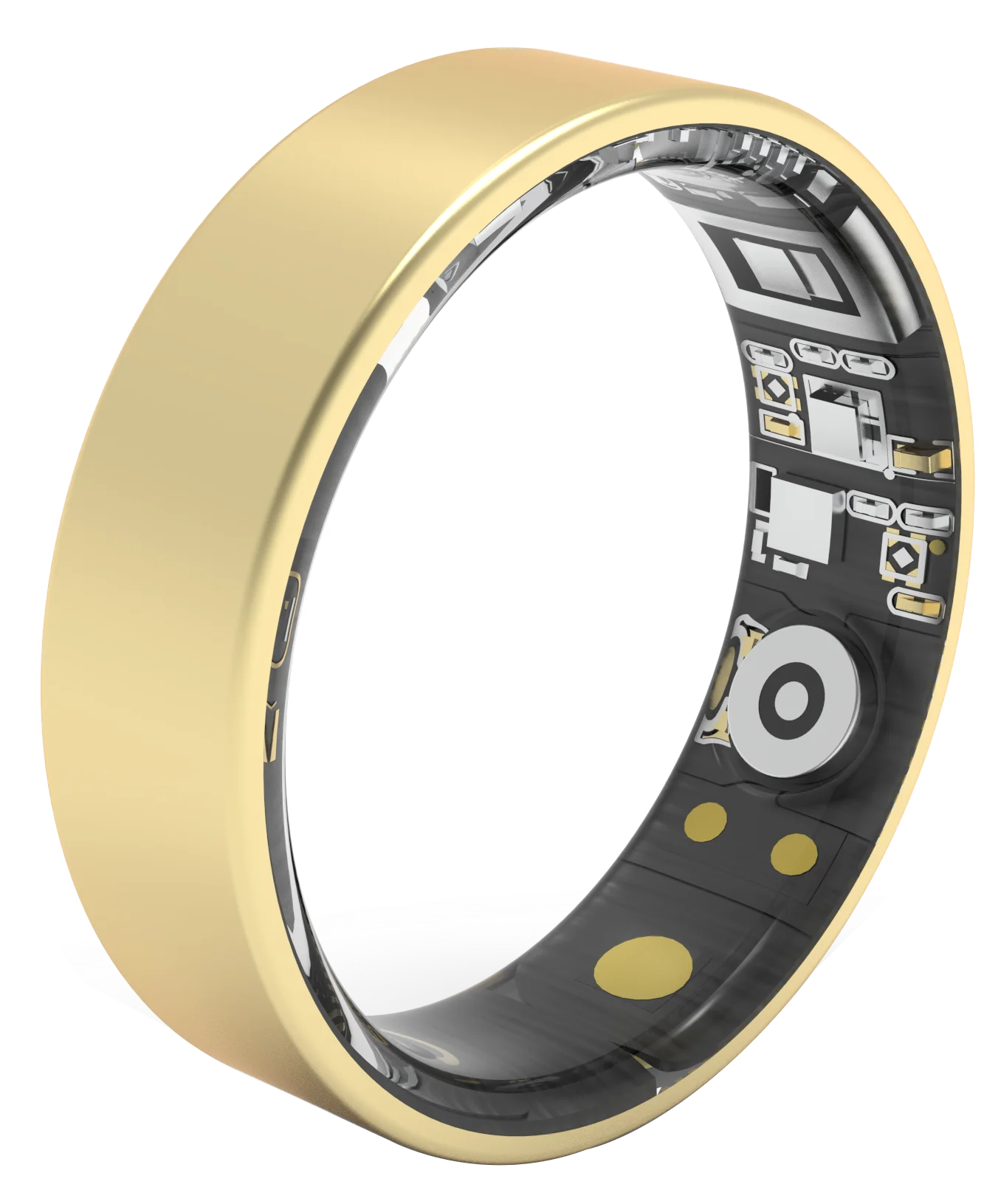


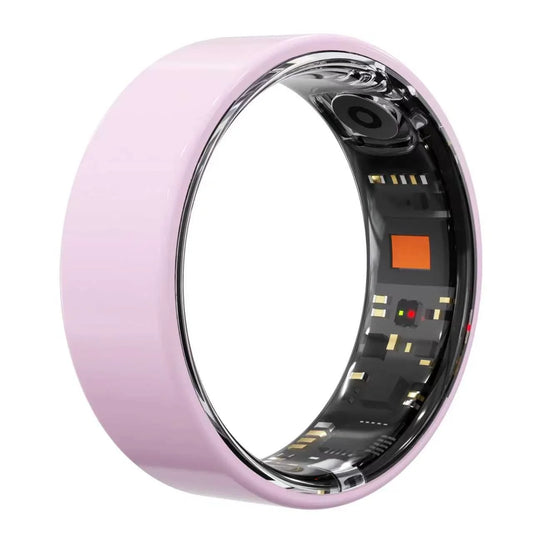
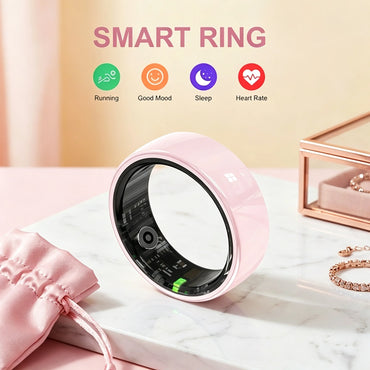
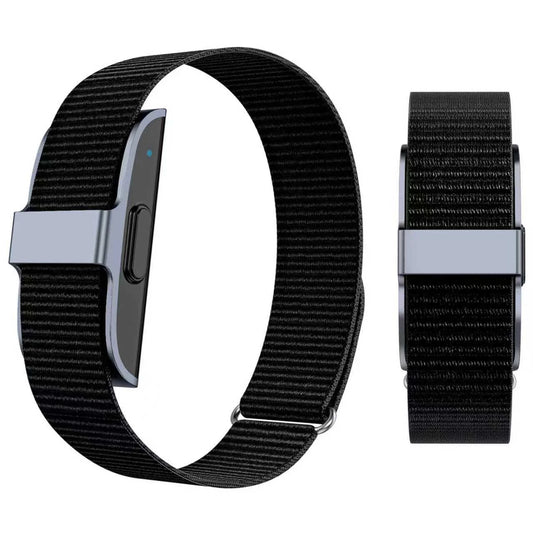
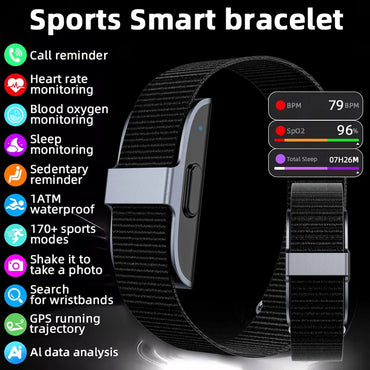


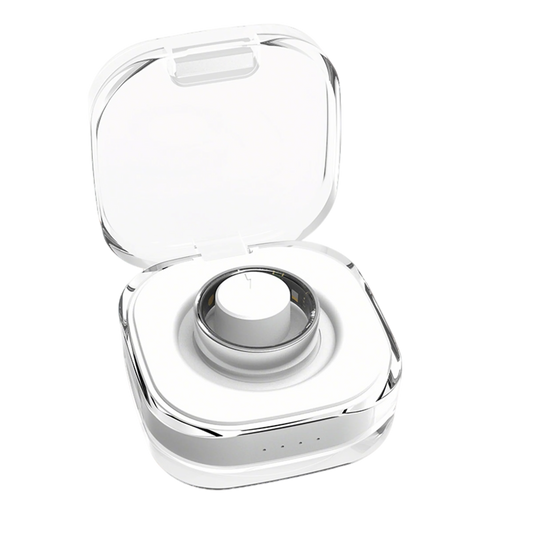
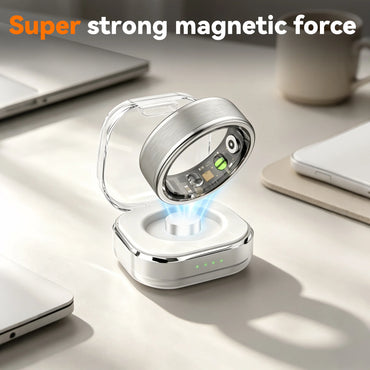
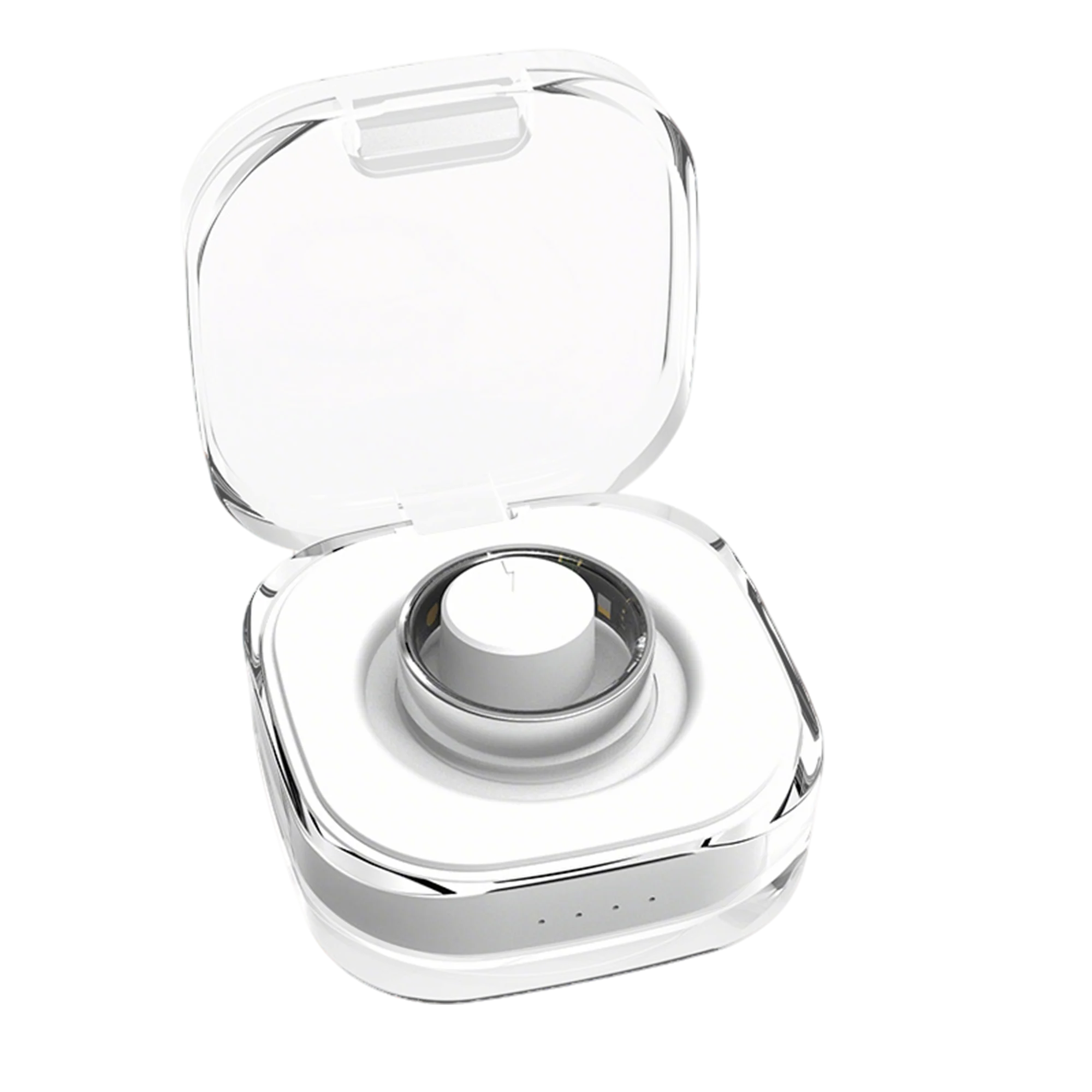


Osawalla Ceramic Pro Smart Ring
SKU:
Couldn't load pickup availability


- 4g Ultra-Light
- Sleep & HRV Tracking
- Cycle & Ovulation Tracking
- 2.6mm Slim Profile
- Up to 7–9 days of battery life & No Subscription App
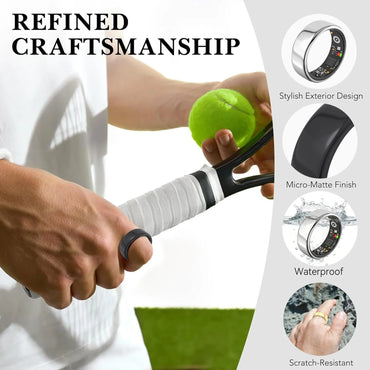
- 5ATM / IP68 Water Resistant
- Free Shipping
- 30-day easy return
- 1-Year Warranty




I absolutely love this smart ring! It looks beautiful, feels comfortable to wear, and has a sleek design. I really like being able to track my activity, sleep, and other health features without wearing a bulky smartwatch. The pink color is gorgeous too!
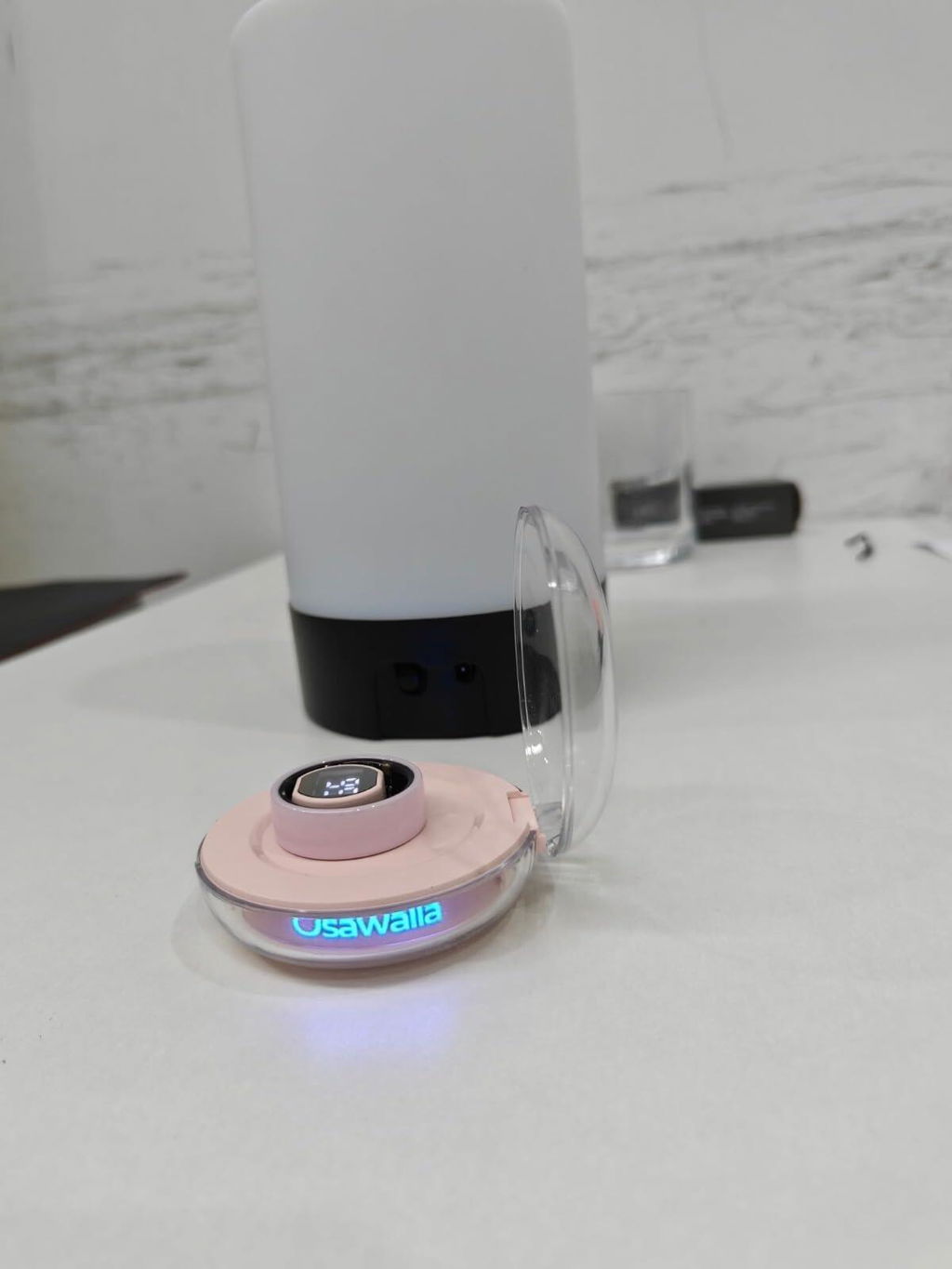
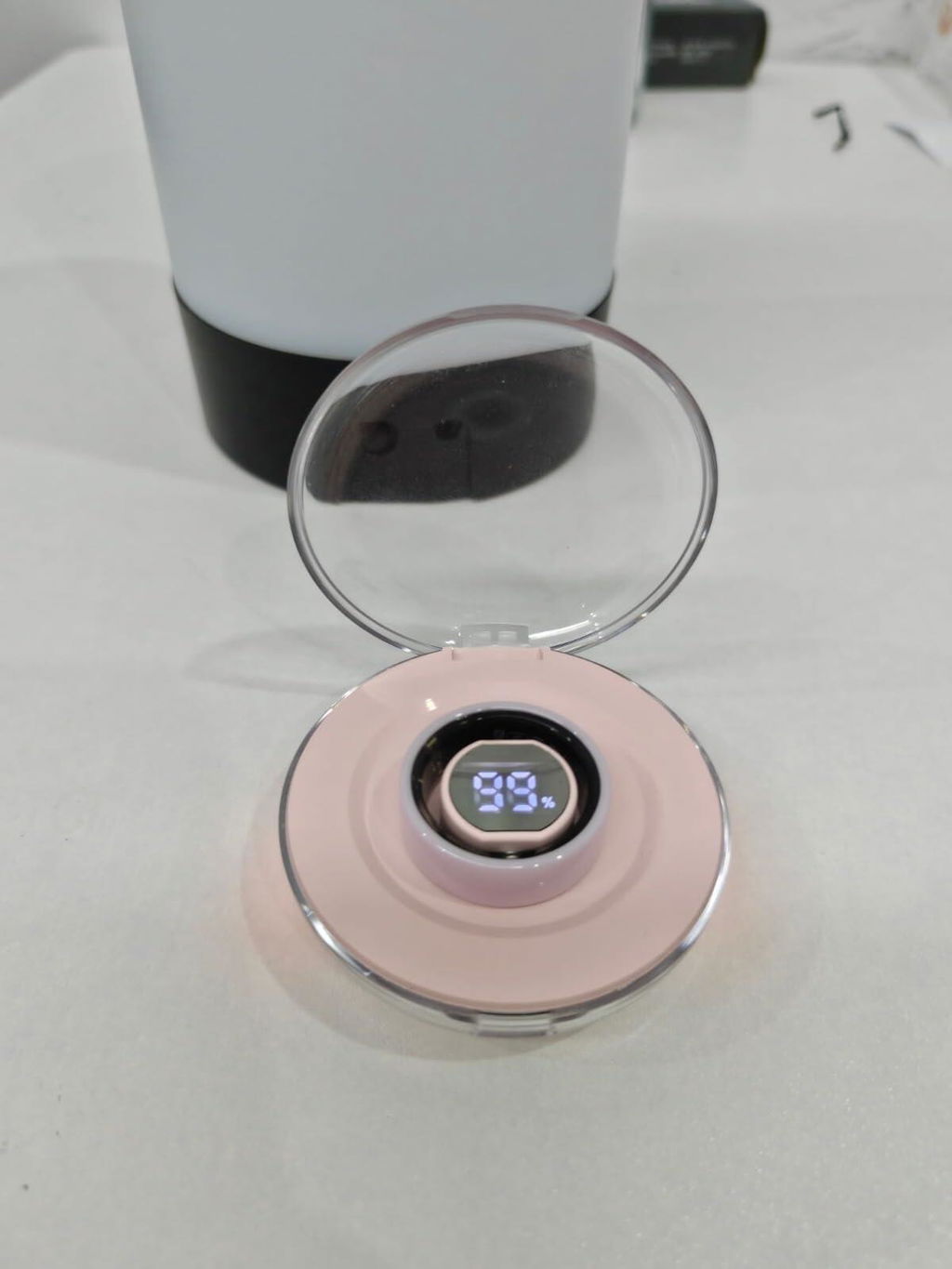
I love this pink ceramic smart ring! The pink shade is so unique and beautiful. I bought it as a gift for my daughter, and she absolutely adores it. Setup was simple. It tracks sleep, heart rate and steps perfectly, with no subscription fees at all. The portable charging case is such a nice bonus. Great purchase!
The sturdy sleek design makes it very comfortable to wear a day and night. It’s lightweight. A very easy to use and it keeps track of all your important stuff like heartbeat, blood, oxygen levels, your steps and sleep. The battery lasts quite a while between charges. I felt the sizing was pretty right on because I wear a size 8 in all my rings. Very happy with this
Frequently Asked Questions
(Osawalla Ceramic Pro Smart Ring)
How accurate is the heart rate tracking?
The Osawalla Smart Ring tracks 24-hour heart rate monitoring. Customers report that the ring accurately tracks heart rate along with sleep, steps, and daily activity—many users appreciate how reliable it is for fitness tracking.That said, reviews mention "not accurate readings" in a few cases, so accuracy may vary slightly depending on ring fit and wear. For the most precise heart rate data, ensure the ring sits snugly on your finger.
Is this suitable for swimming?
Yes, the Osawalla Smart Ring is suitable for swimming. It features IP68 waterproof technology rated to 15 meters, making it water-resistant for pools and ocean swimming.Customers confirm it holds up well in water—one reviewer specifically mentioned swimming daily with no issues. The ring continues tracking your heart rate and other metrics while you swim, so you can monitor your workout data.
How do I find my correct ring size?
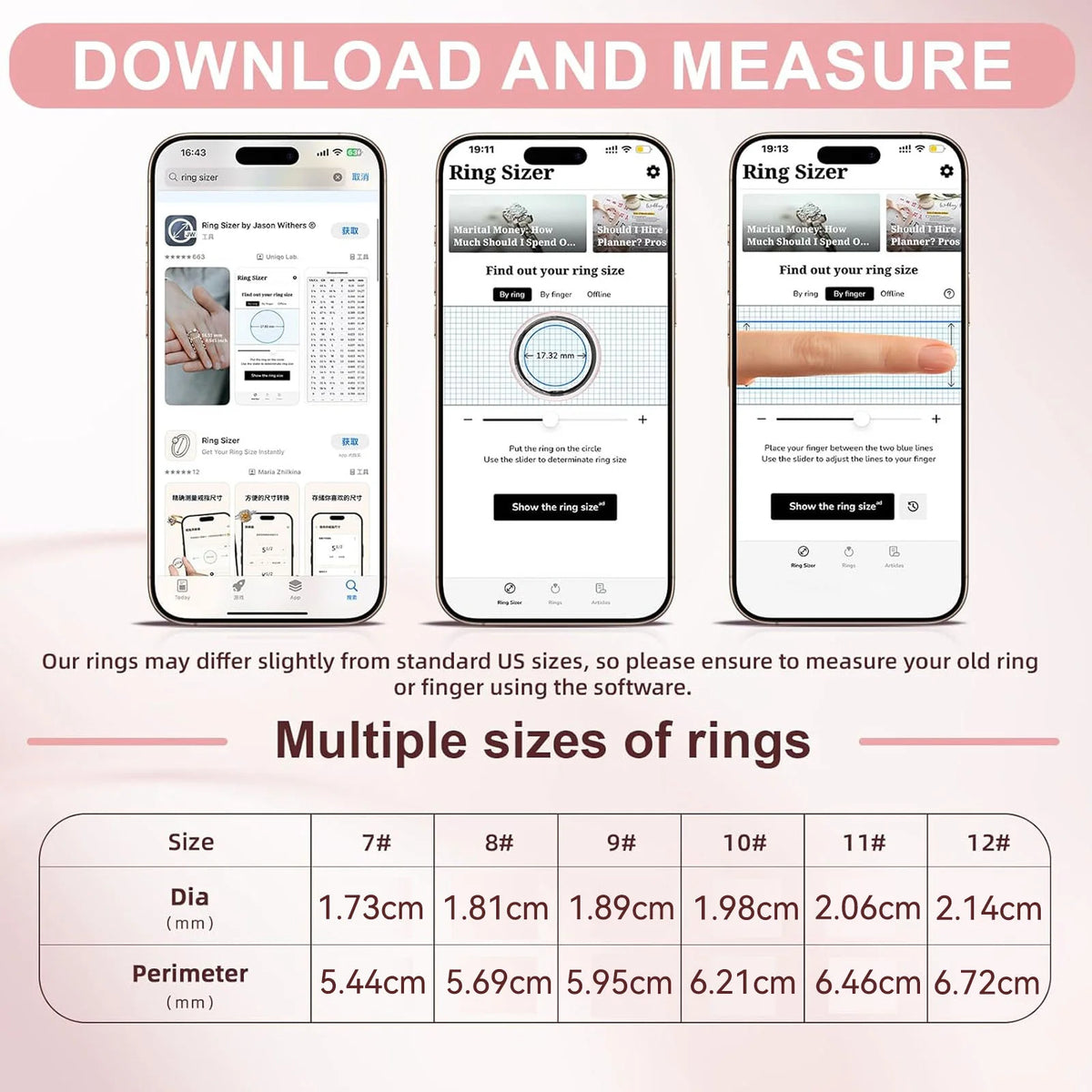
The Osawalla Smart Ring comes in sizes 6–13, and the product page recommends measuring your finger circumference against the size chart before purchasing to ensure a comfortable fit and avoid returns.Customers emphasize the importance of getting the right size—one reviewer mentioned the Size 8 fits comfortably and feels lightweight. The product description notes that proper sizing is key for all-day comfort, especially since the ring needs to fit snugly for accurate heart rate tracking.
Can I exchange if sizing is wrong?
I don't have specific information about the Osawalla Smart Ring's exchange policy on the product page. However, Amazon generally offers returns and exchanges for most items within 30 days of purchase if unused or unworn.
Since proper sizing is critical for this ring's comfort and accuracy, I'd recommend checking Amazon's return policy or contacting the manufacturer directly to confirm exchange options for sizing issues before making your purchase.
How to connect the device?
1. Turn on your phone's Bluetooth, go to the app's homepage or your profile, tap "Add Device," then tap "Scanned Devices." After successful connection, data will sync to the app.
2. Devices charging will be displayed first. If you have multiple devices, this makes it easier to find them while they are charging.
How to sync device data?
1. Ensure the device and phone are connected. Data will sync periodically.
2. You can also manually pull down the screen on the app's homepage to actively sync device data to the app.
3. If the above steps do not resolve the issue, we recommend restarting Bluetooth and reopening the app to reconnect.
Device pairing failed/Device not found?
1. Check if the device has power. Plug the device into a charger or a computer's USB port to ensure it has power.
2. Check if other phones nearby have connected to the device. Unpair the device on another phone and then pair it with your current phone.
3. Try restarting Bluetooth. If the device has power and the phone still cannot find it, try restarting your phone's Bluetooth.
4. Ensure Bluetooth and location services are enabled and keep the device close to your phone
How to monitor sleep?
1. The device records sleep based on activity level and wear detection. When a person sleeps, they are generally in a static state. When they turn over or move their hands, the device's sensors record changes in activity, constantly tracking changes caused by body movement and determining whether the person is asleep.
2. To accurately and effectively monitor sleep, we have set unique monitoring conditions. Only data that truly meets the conditions will be recorded as valid sleep data.
How to charge the device?
Simply connect the charging cable to the charging port of the device. A red light inside the device will flash during charging, and a green light will flash when charging is complete.
How long does it take to fully charge the device?
It generally takes 1 hour to fully charge.


