

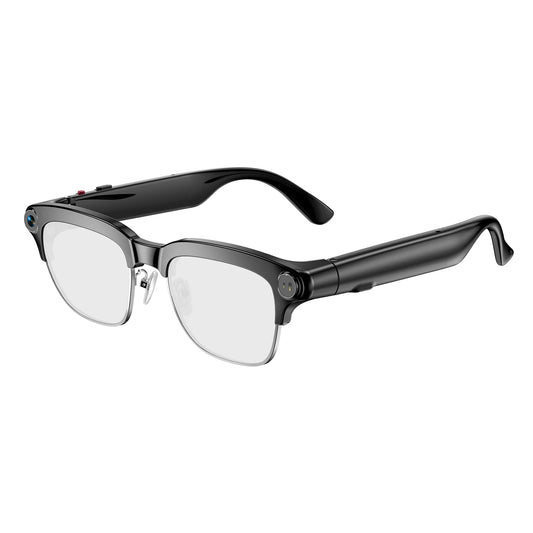
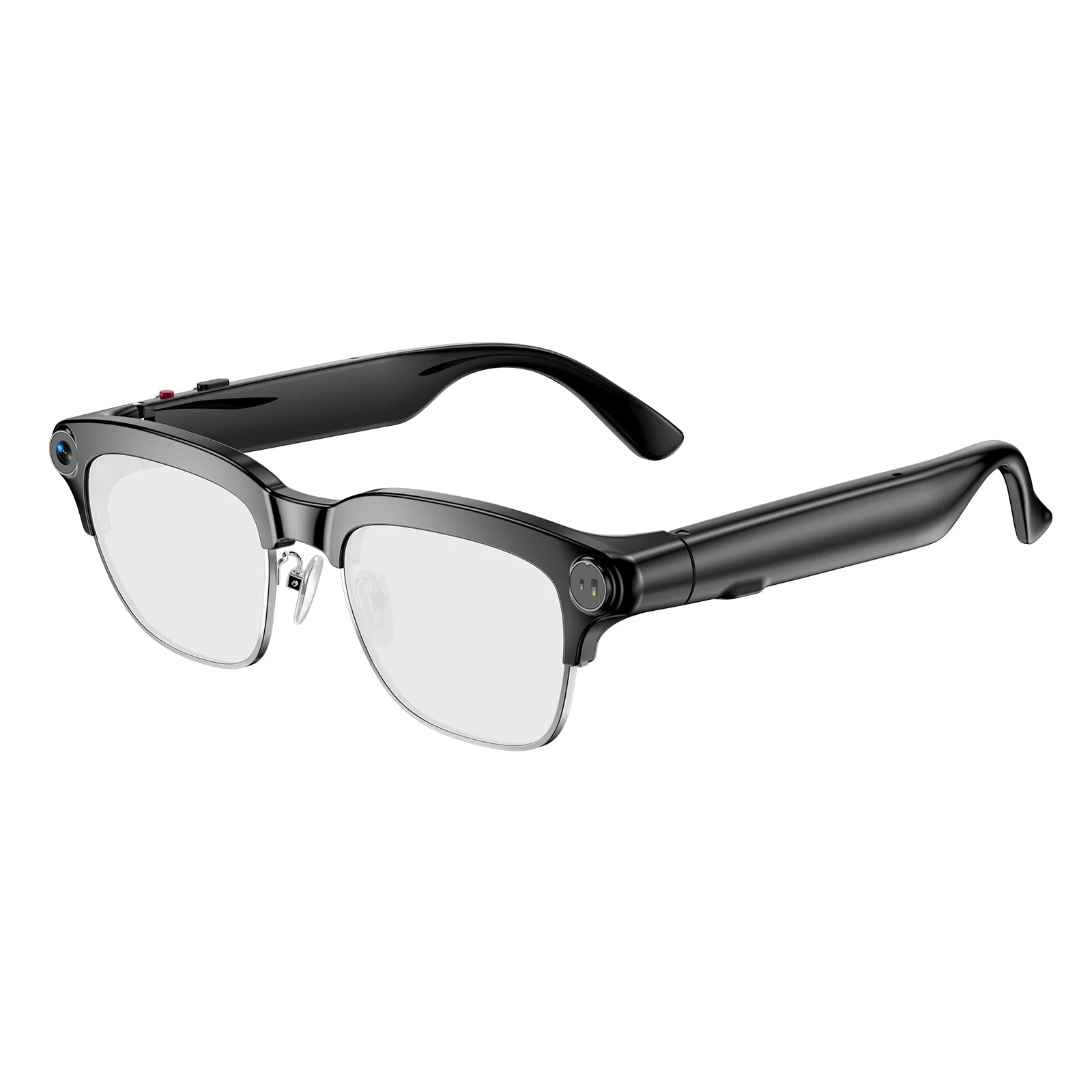
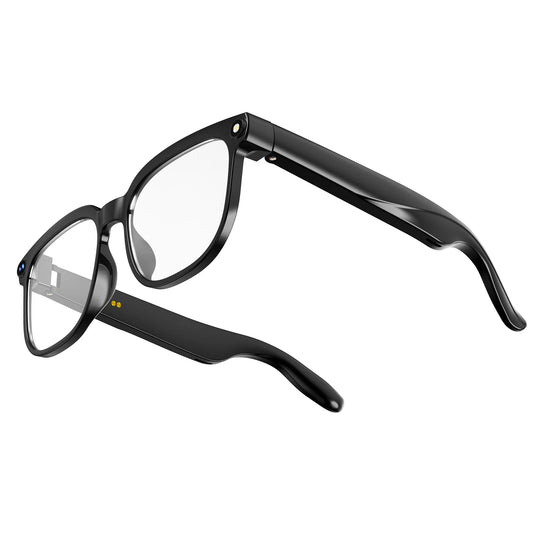
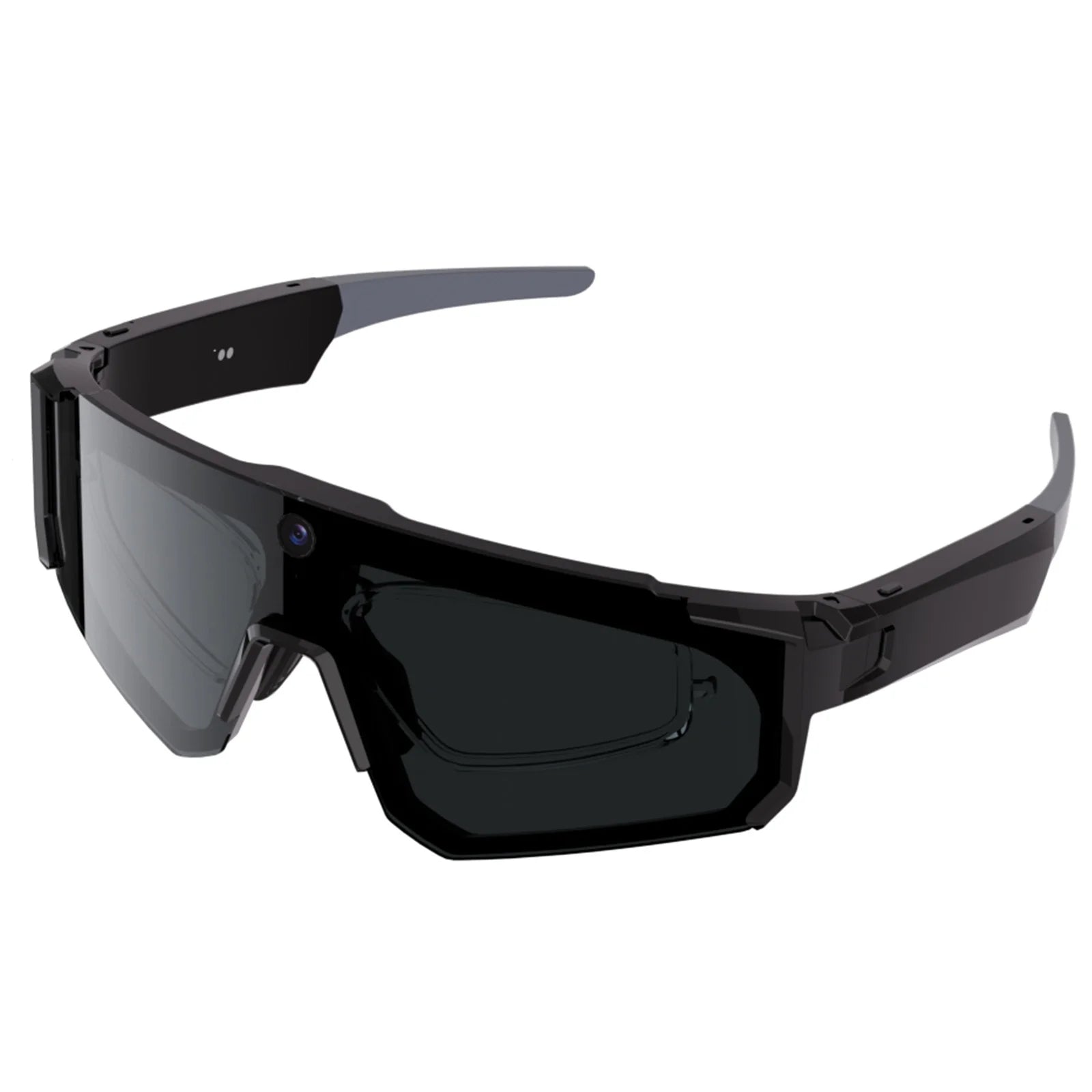
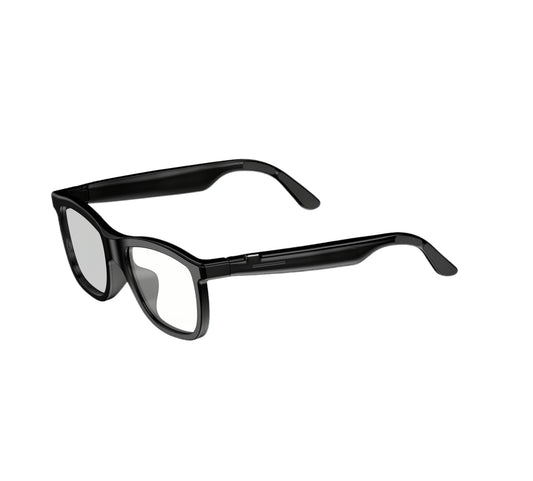
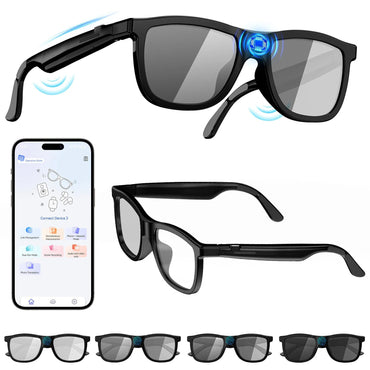
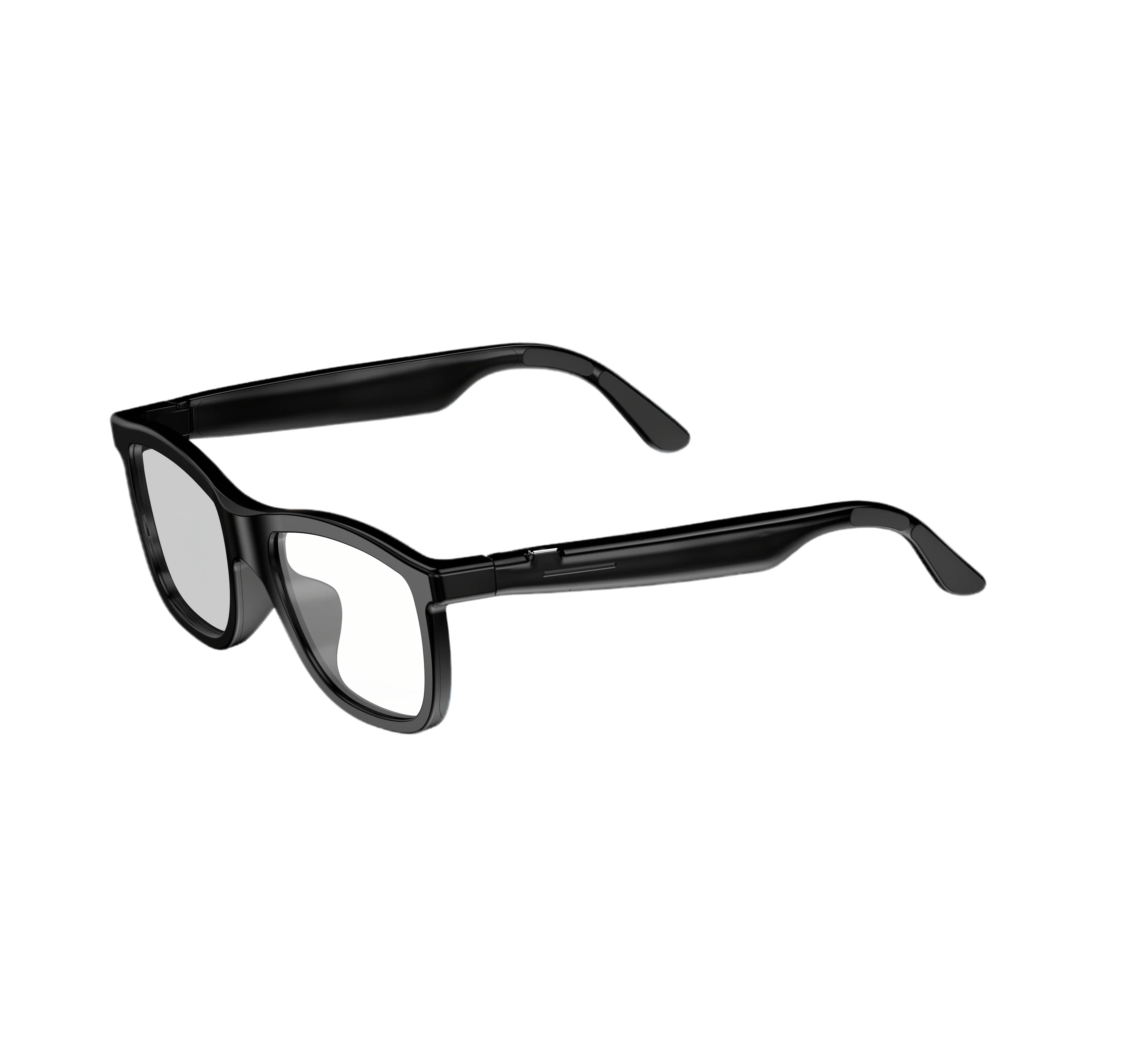
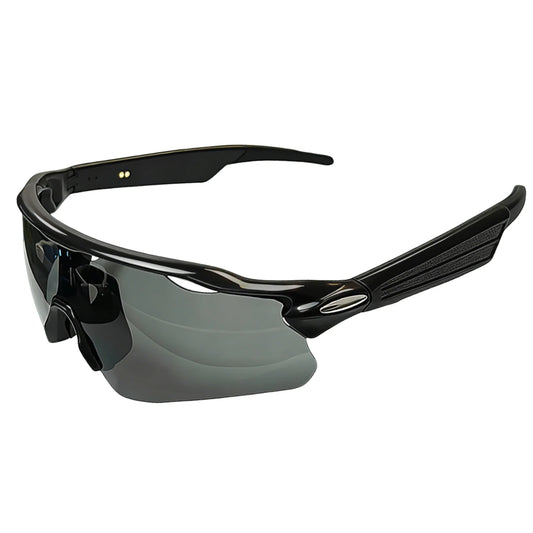
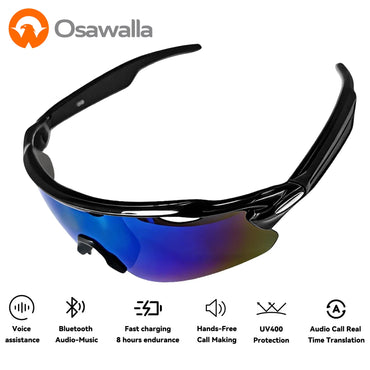
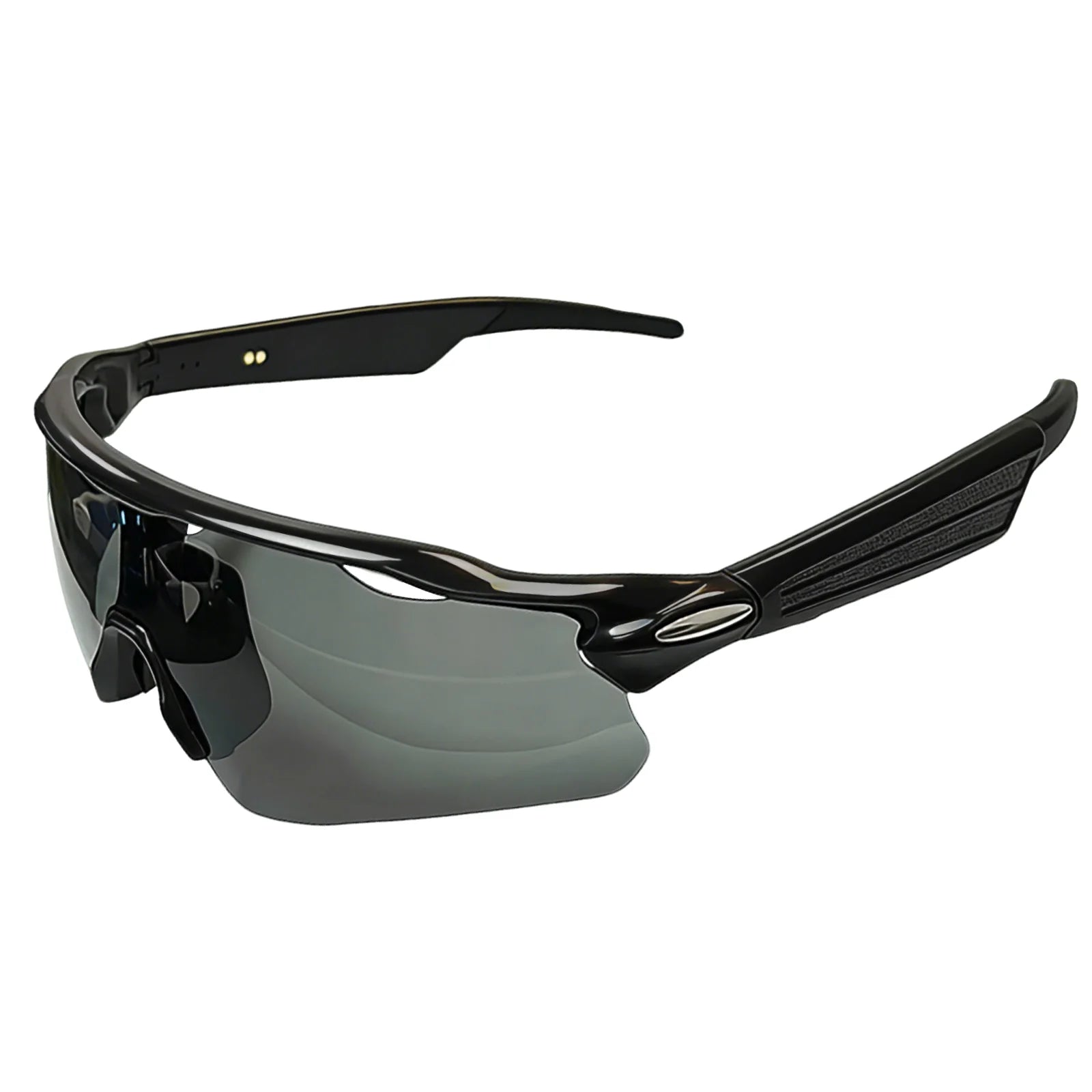




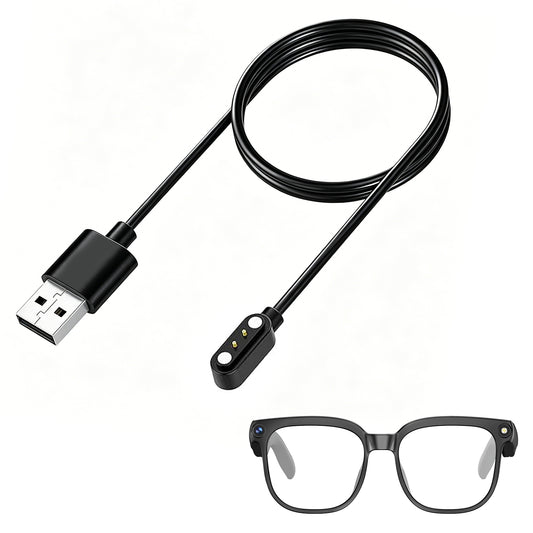
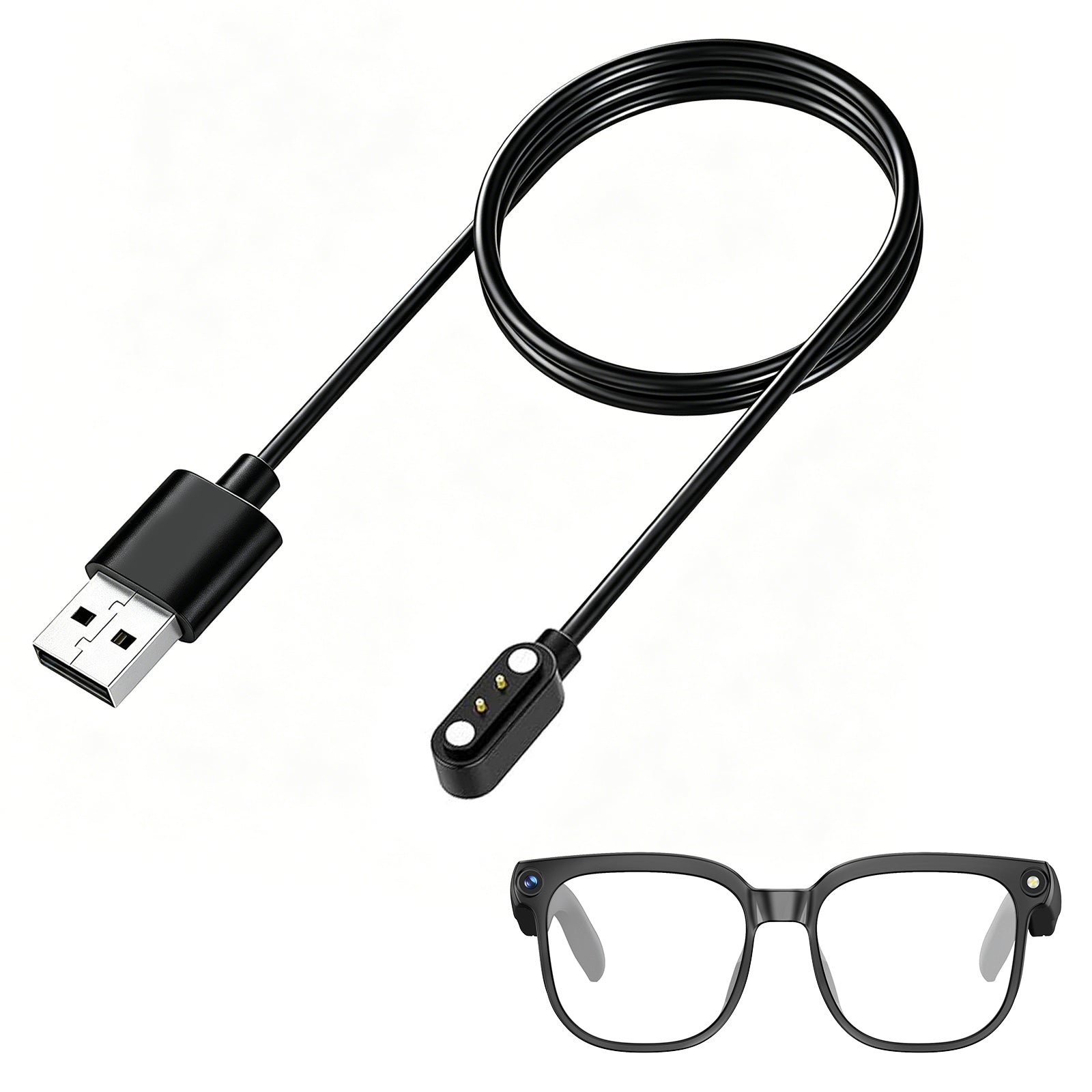


GP02 smart glasses with camera
SKU:GP02-B03
Couldn't load pickup availability


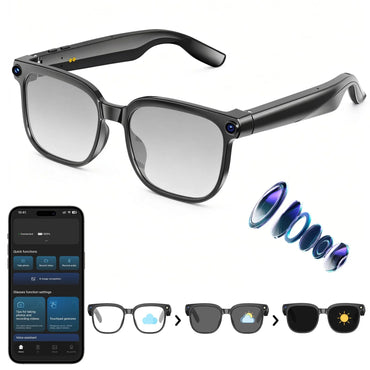
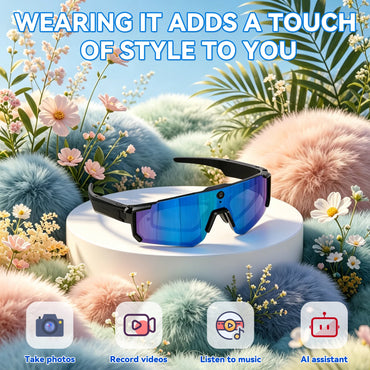
- 【1080P HD Video & 8MP Photo Capture】8MP anti-shake camera captures sharp photos & stable 1080P video with 1-hour hands-free recording.
- 【AI Object Recognition & Real-Time Translation】ChatGPT-powered voice assistant supports object recognition and two-way translation across 139+ languages.
- 【Automatic Sync & Clear Voice Calling 】Bluetooth 5.4 & Wi-Fi auto-sync; dual ENC mics for clear calls, touch controls for AI and media operation.
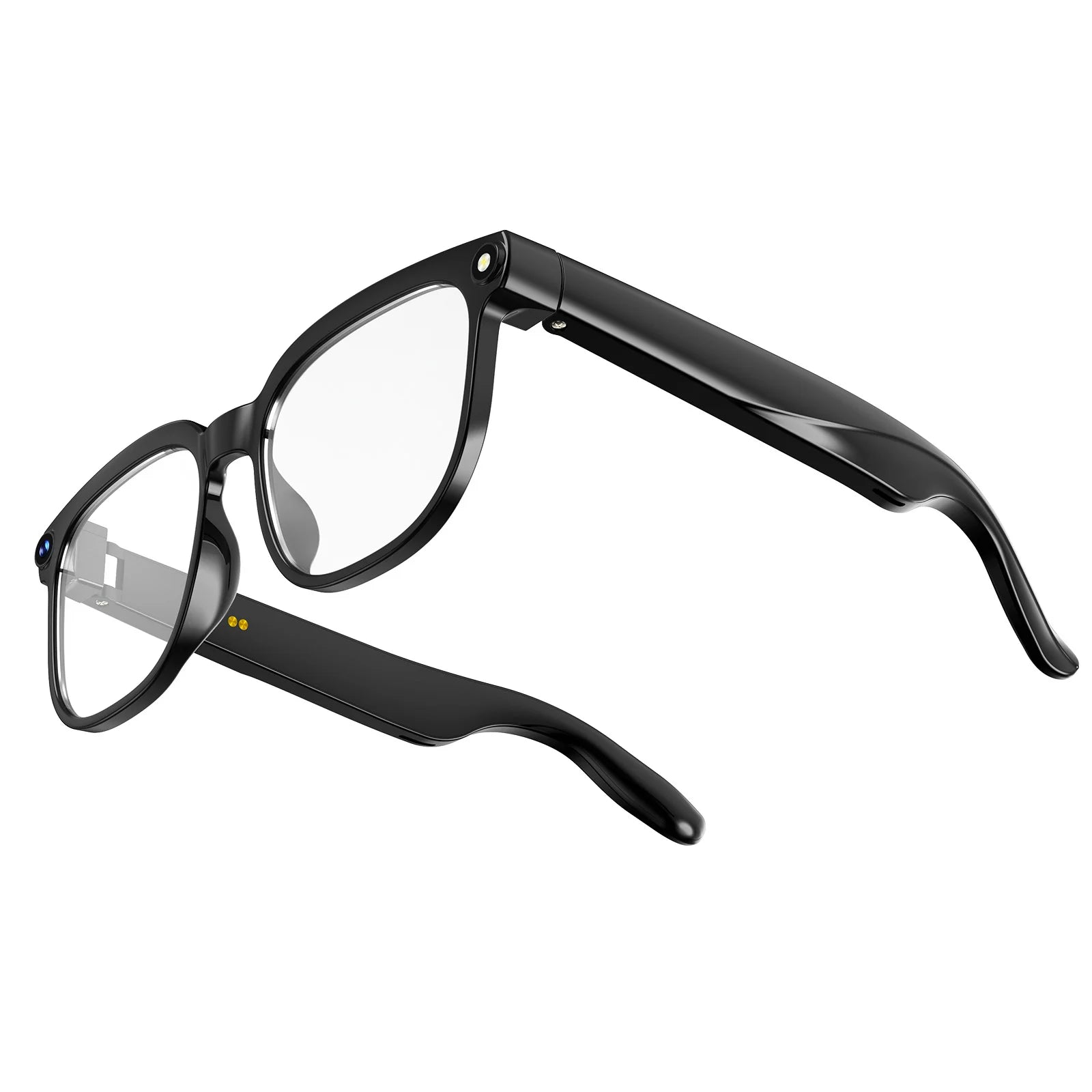
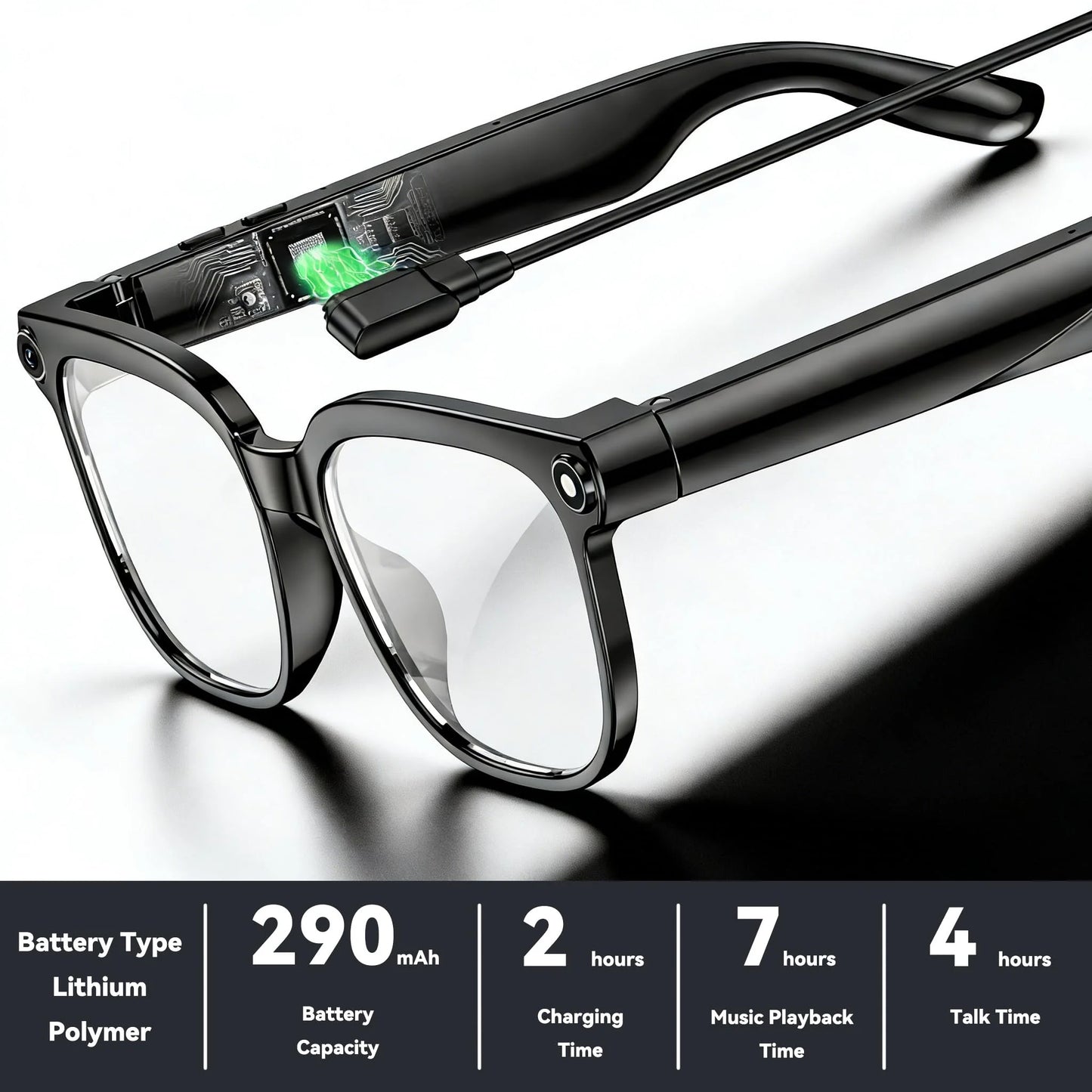
- 【Ultra-Light 40.8g (0.09lb) for All-Day Comfort & Long Battery Life】Light 40.8g TR90 frame for all-day comfort; IP65 splash-proof, 7-hour audio playback and 7-day standby.
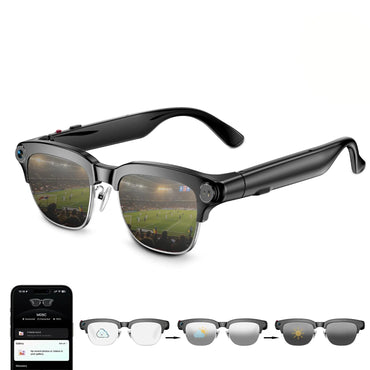
- 【Photochromic Lenses】40.8g lightweight TR90 glasses, IP65 splash-proof, 7h music playback & 7-day standby.
- Free Shipping
- 30-day easy return
- 1-Year Warranty




Frequently Asked Questions
No sound coming from the glasses?
1. Confirm the glasses are powered on and connected to your phone.
2. Check your phone's Bluetooth settings to see if the glasses are connected.
3. Try unpairing and re-pairing the glasses.
4. Restart both the glasses and your phone's Bluetooth, then re-pair the glasses.
Do the smart glasses need to be connected to a phone?
Some functions (such as data synchronization, making and receiving calls, and transferring photos) require a Bluetooth/Wi-Fi connection to the phone app, but basic functions (such as taking photos, recording audio, and recording video) can be used independently once connected to the app.
Bluetooth connection failure?
1. Ensure the glasses are in pairing mode (power on the glasses until the indicator light flashes).
2. Delete your phone's Bluetooth history (remove old devices in Bluetooth settings).
3. Restart both your phone and glasses.
4. Try connecting with another phone (to determine if the problem is with the glasses or the phone).
5. Restore factory settings.
Bluetooth frequently disconnects?
1. Use close to your phone (ideally within 3 meters).
2. Turn off other Bluetooth devices (to reduce interference).
3. Update your glasses and the app.
Which app version should I download? System compatibility?
1. For a better user experience, please download the latest version of the app.
2. Your phone system needs Android 9.0 or higher, or iOS 13.0 or higher to install and use.
How do I control taking photos or videos?
1. You can learn how to take photos and videos on the homepage.
2. You can learn how to control it in My - New User Guide.
Can I answer calls? How is call privacy protected?
Bluetooth calls are supported, but open speakers may leak sound. For privacy calls, it is recommended to use a headset or lower the volume.
Will there be a prompt when taking photos/videos/recording audio?
There will be a prompt via indicator light or sound, but please be aware of local privacy regulations to avoid unauthorized filming of others.
Why does WiFi connection fail when importing photos/videos/audio?
1. Ensure your phone's Wi-Fi is turned on and can connect to the glasses' Wi-Fi during import.
2. Ensure both the glasses and your Wi-Fi are up-to-date.
3. Restart the glasses and the app.
Where are photos/videos/audio recordings stored?
1. Primarily stored in the glasses' local memory (temporary storage).
2. After connecting, they can be transferred to the app.
What happens when local storage is full?
It is recommended to periodically connect to the app to sync data. After syncing: Content uploaded to the app will automatically have its local storage space on the glasses cleared and released.
Will synced content be lost?
No, storage is permanent unless you manually delete it.


