

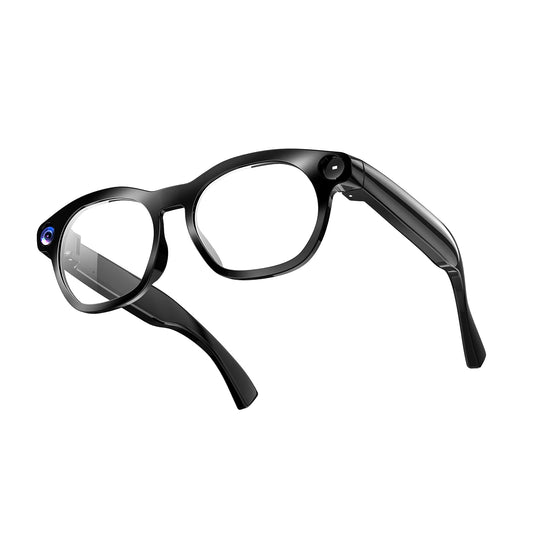
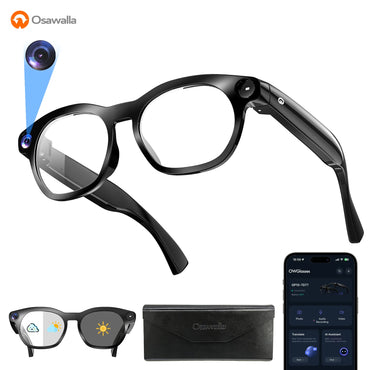
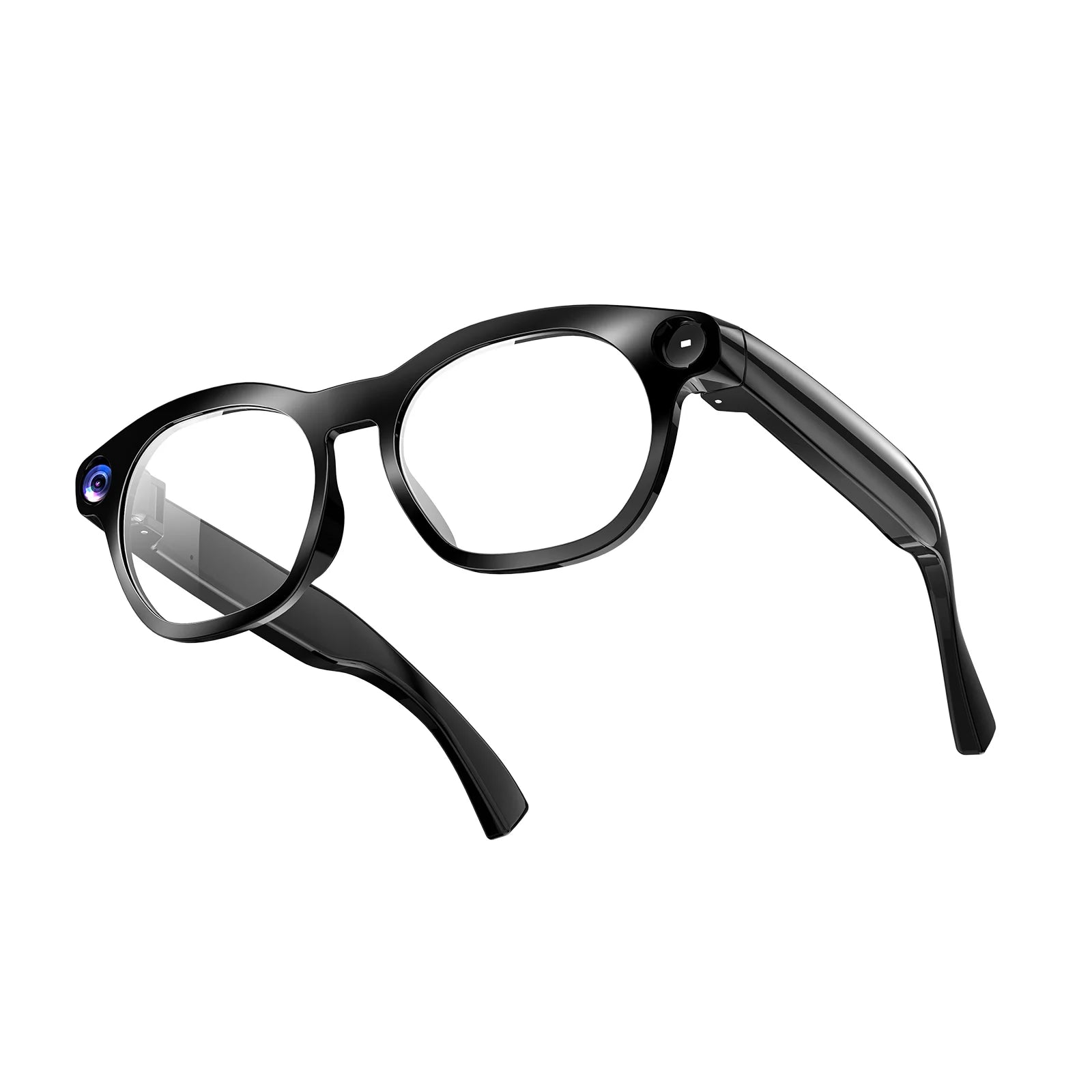
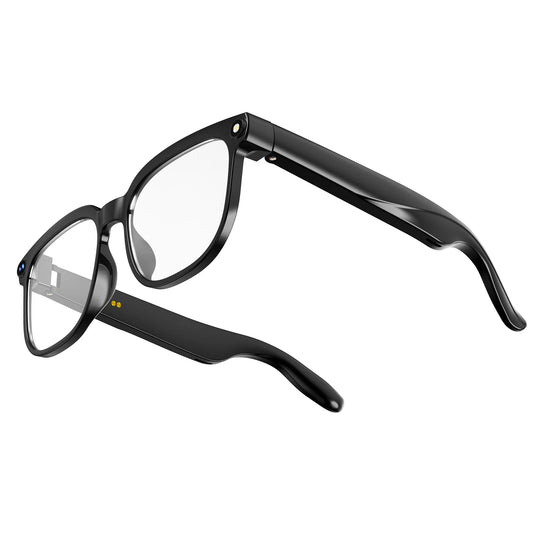






Setup, lenses and prescriptions, pairing, recording and indicator behaviour, privacy, charging and warranty.
Getting started
Unboxing, first pairing, wearing and nose-pad adjustment
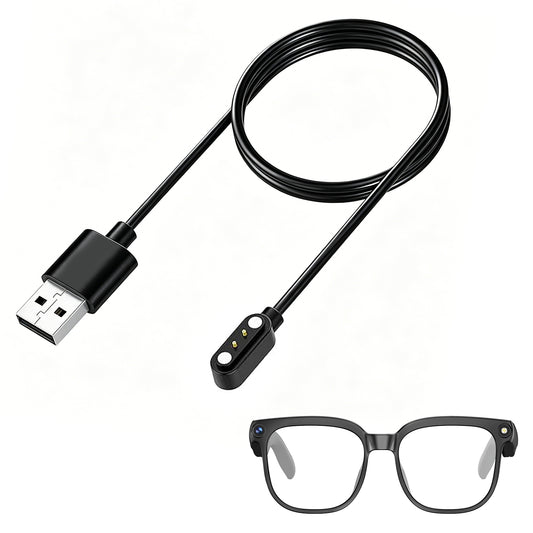
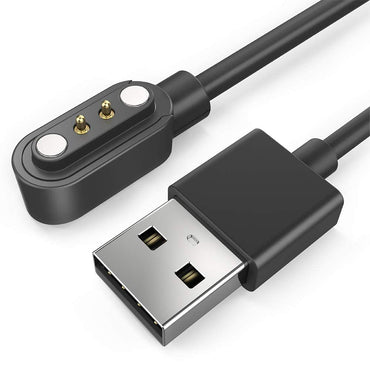
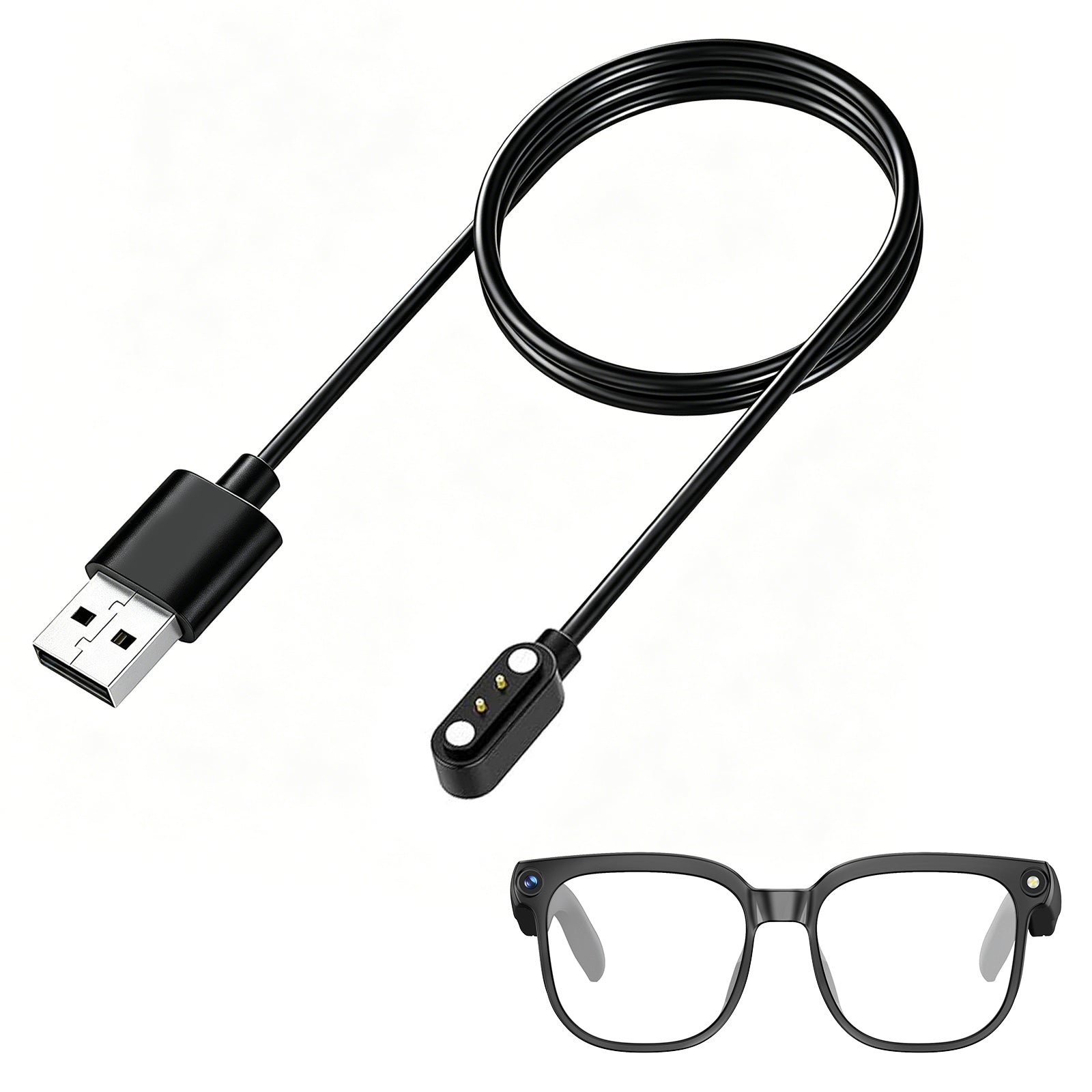
• Charge the glasses with the magnetic 2-pin cable until the indicator stops pulsing — about 2 hours from empty.
• Download the OSAWALLA app and create an account.
• Put the glasses on and touch and hold the temple control for 3 seconds to enter pairing mode.
• In the app tap Add device → Smart Glasses and select the model that appears.
• Grant Bluetooth, microphone and (if you want transfers) local network permissions.
• Device model and serial number
• Where you bought it and your order number
• A short video or screenshot showing the problem
• Yes. A front-facing LED illuminates whenever recording is active and cannot be turned off, covered, or dimmed. This is a compliance requirement, not a setting.
• You are responsible for telling people around you when you record, and for following local law. In many jurisdictions recording without notice is unlawful.
• Device model and serial number
• Where you bought it and your order number
• A short video or screenshot showing the problem
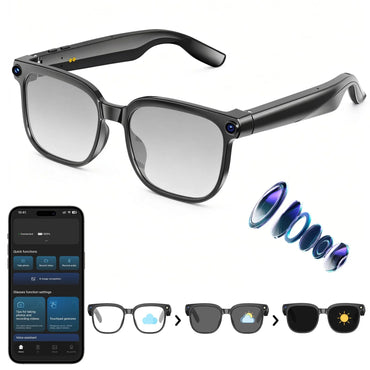
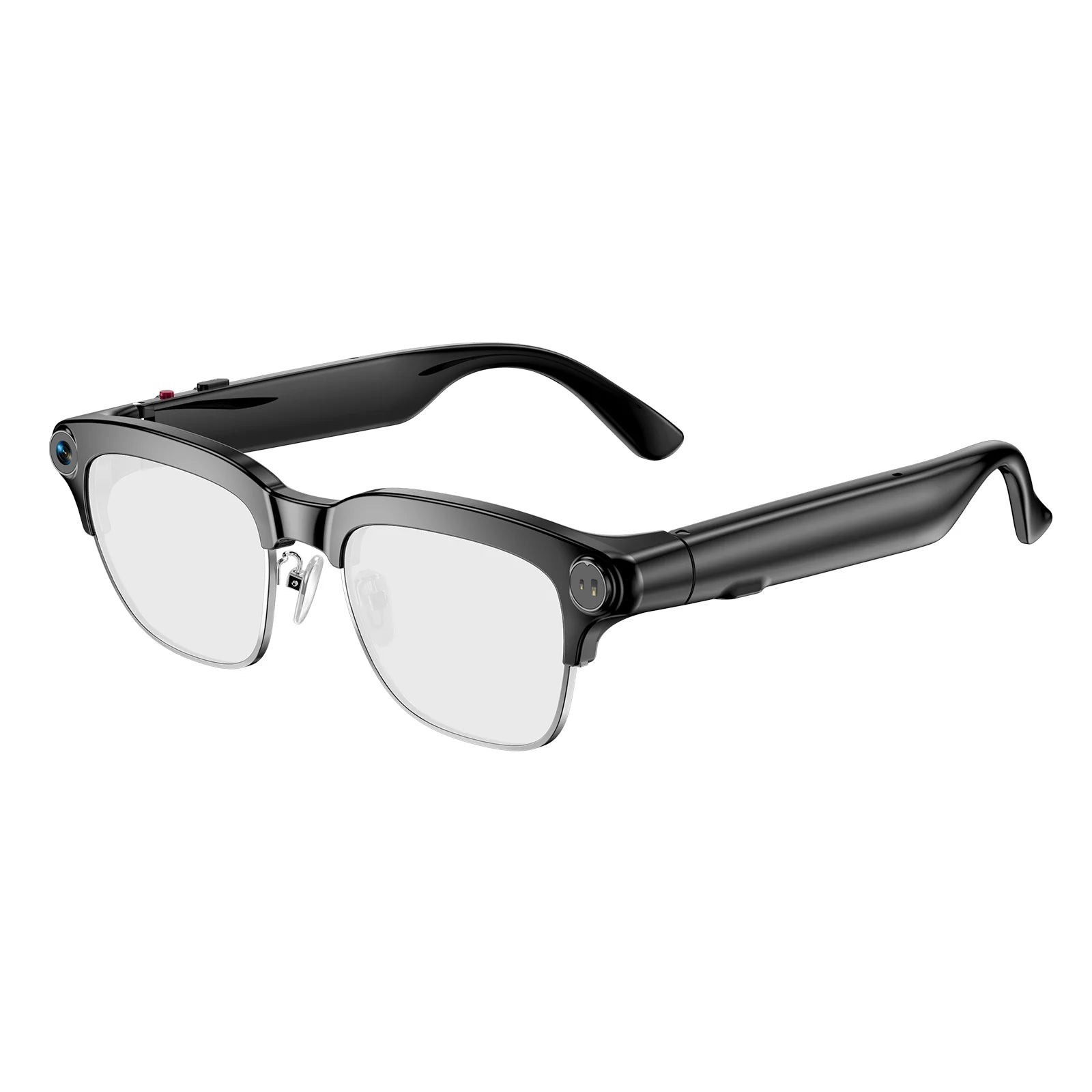
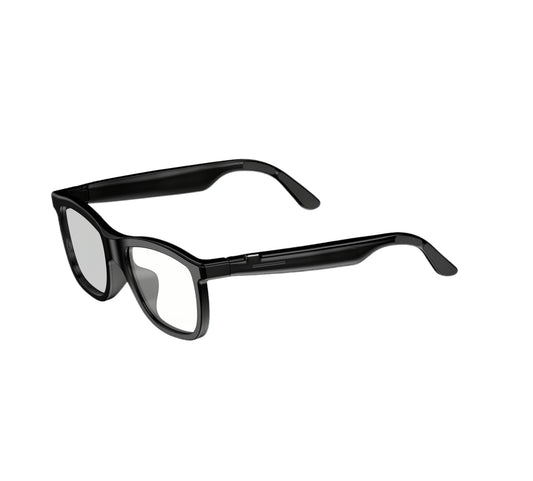
• Daily and Chic frames accept prescription lenses at any optical counter — the frames take standard lens blanks.
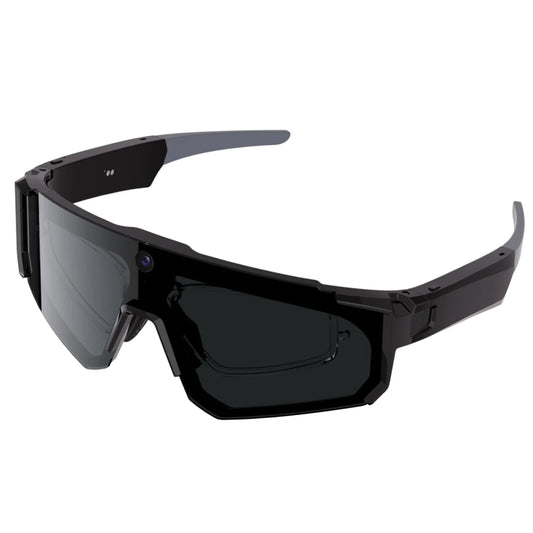
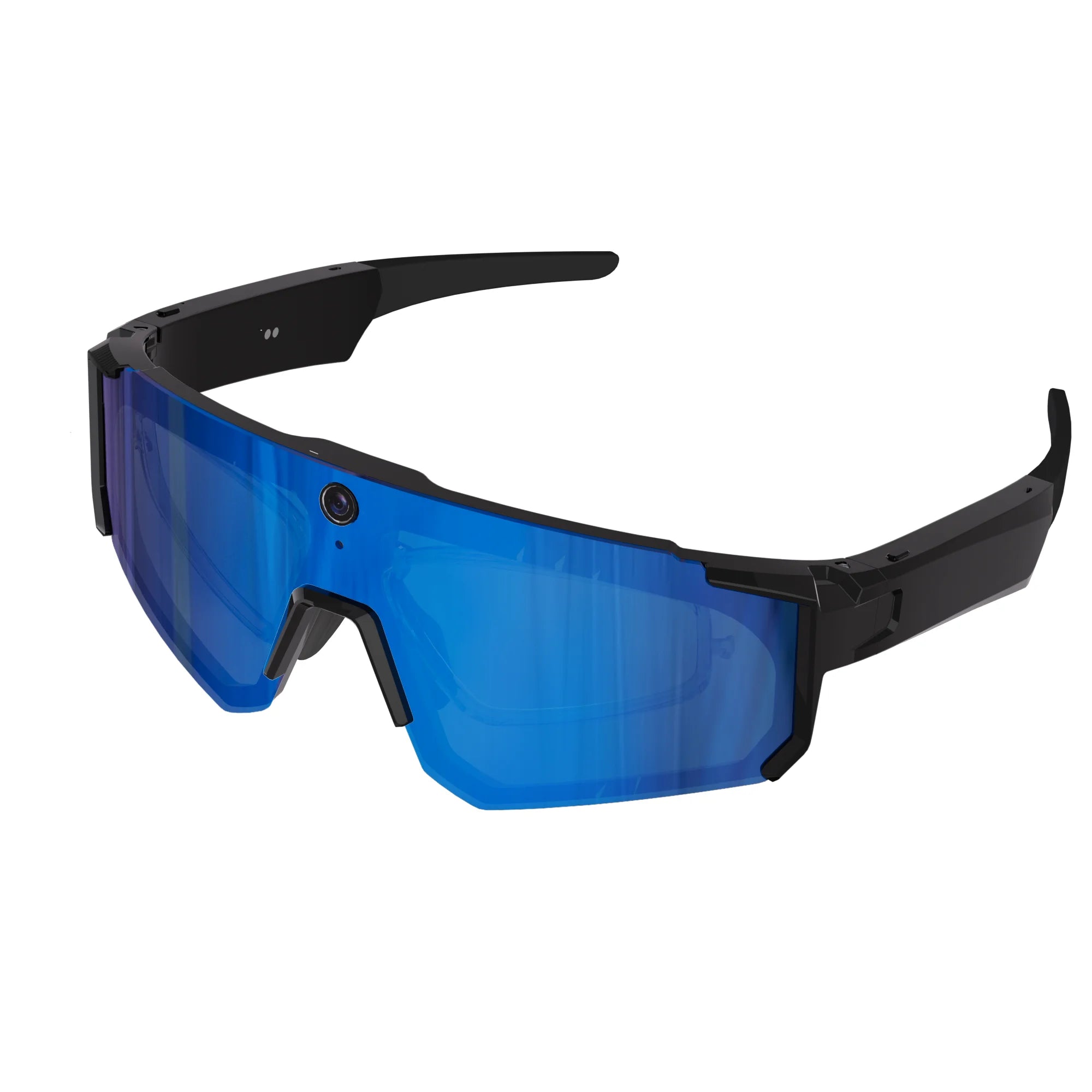
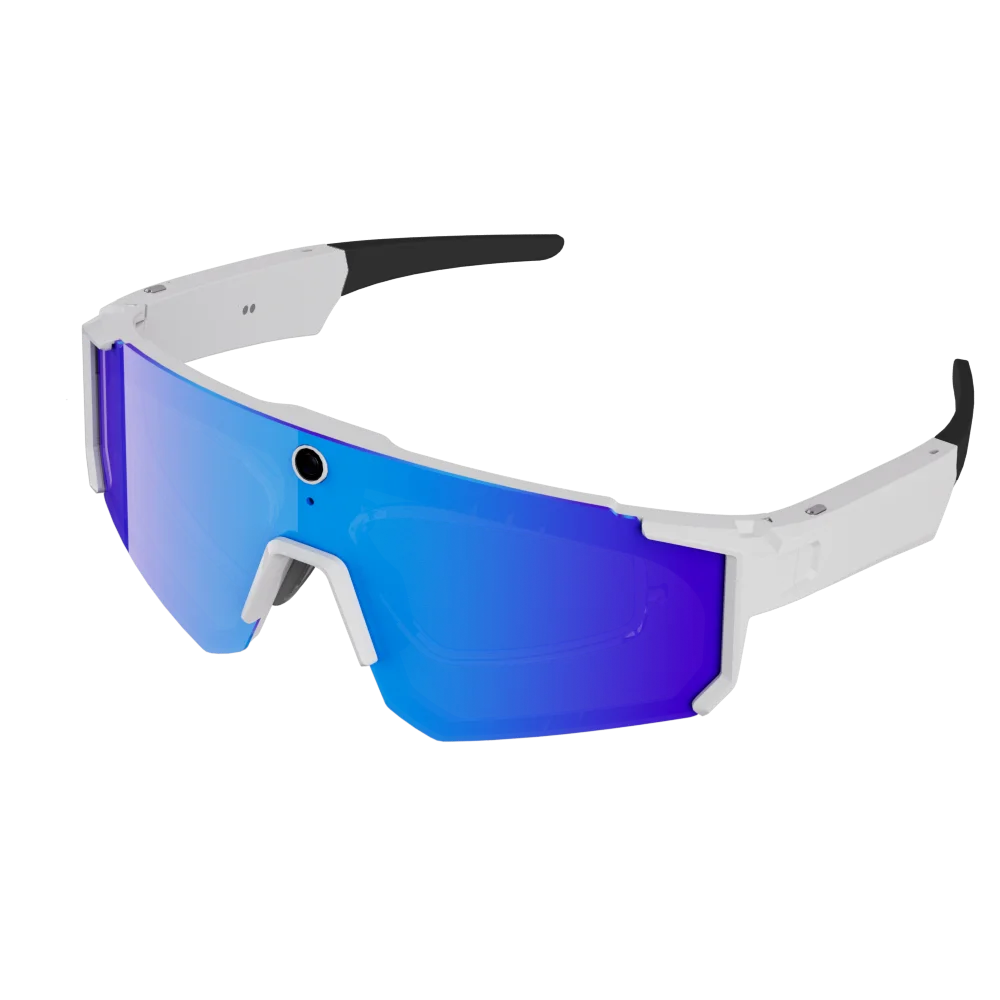
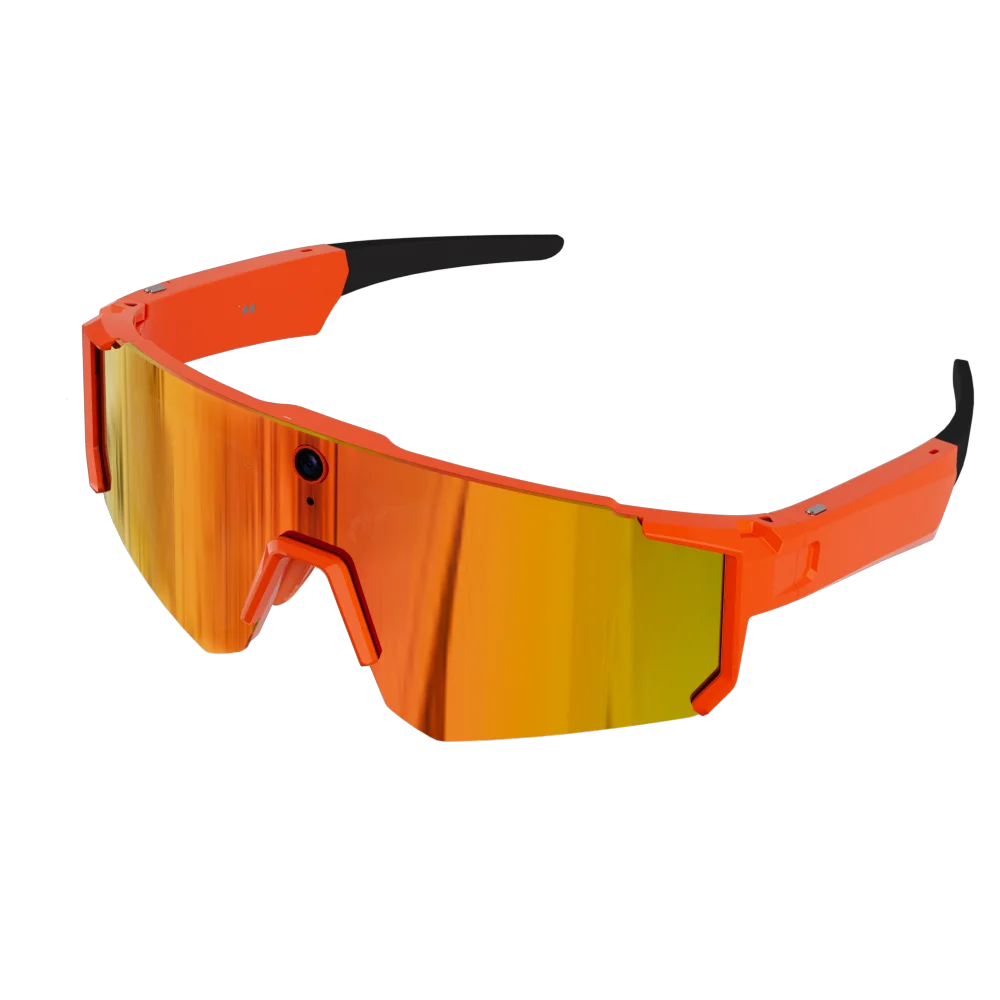
• Sport frames use a wrap profile with a strong base curve. Simple single-vision prescriptions can usually be glazed; high prescriptions and progressive lenses often cannot.
• If your prescription is above approximately ±4.00, ask your optician for a nylon or CR-39 lens rather than a TAC or polarized lens.
• Device model and serial number
• Where you bought it and your order number
• A short video or screenshot showing the problem
• TAC — laminated polarizing film. Light, inexpensive, cuts glare. Standard for sunglasses and used in our Sport range.
• PC (polycarbonate) — impact resistant, takes coatings well, slightly less optically pure.
• CR-39 — the standard optical plastic. Good clarity, moderate impact.
• Nylon — lightest and most impact resistant of the clear materials, at higher cost.
• Device model and serial number
• Where you bought it and your order number
• A short video or screenshot showing the problem
• Daily Core supports WiFi transfer. Open the app, select the files, and transfer directly over the local network.
• On other models, connect the glasses by USB and copy from the removable storage volume.
• Files are 1080P MP4 for video and JPEG for stills. Nothing is uploaded to a server unless you explicitly share it.
• Device model and serial number
• Where you bought it and your order number
• A short video or screenshot showing the problem
• Charge for a full 30 minutes on the supplied magnetic cable. A deeply discharged battery needs longer than the indicator suggests.
• Check the magnetic connector is seated — the pins must be flat against the contacts. Debris on the pins is the most common cause.
• Try a different USB power source. Some low-power chargers will not start a fully flat battery.
• Touch and hold the temple control for 10 seconds to force a restart.
• Device model and serial number
• Where you bought it and your order number
• A short video or screenshot showing the problem
Lens & prescription
TAC / PC / CR-39 / nylon, blue light, polarizing, tinting, prescriptions
• Open the OSAWALLA app and go to Lens & prescription for this device.
• This section covers tac / pc / cr-39 / nylon, blue light, polarizing, tinting, prescriptions.
• If the app does not show this option, update the app — the feature ships with version 3.2 and later.
• Still stuck? Send us the three items listed below.
• Device model and serial number
• Where you bought it and your order number
• A short video or screenshot showing the problem
• Open the OSAWALLA app and go to Lens & prescription for this device.
• This section covers tac / pc / cr-39 / nylon, blue light, polarizing, tinting, prescriptions.
• If the app does not show this option, update the app — the feature ships with version 3.2 and later.
• Still stuck? Send us the three items listed below.
• Device model and serial number
• Where you bought it and your order number
• A short video or screenshot showing the problem
• Open the OSAWALLA app and go to Lens & prescription for this device.
• This section covers tac / pc / cr-39 / nylon, blue light, polarizing, tinting, prescriptions.
• If the app does not show this option, update the app — the feature ships with version 3.2 and later.
• Still stuck? Send us the three items listed below.
• Device model and serial number
• Where you bought it and your order number
• A short video or screenshot showing the problem
Pairing & app
Bluetooth connection, app permissions, audio and calls, firmware
• Open the OSAWALLA app and go to Pairing & app for this device.
• This section covers bluetooth connection, app permissions, audio and calls, firmware.
• If the app does not show this option, update the app — the feature ships with version 3.2 and later.
• Still stuck? Send us the three items listed below.
• Device model and serial number
• Where you bought it and your order number
• A short video or screenshot showing the problem
• Open the OSAWALLA app and go to Pairing & app for this device.
• This section covers bluetooth connection, app permissions, audio and calls, firmware.
• If the app does not show this option, update the app — the feature ships with version 3.2 and later.
• Still stuck? Send us the three items listed below.
• Device model and serial number
• Where you bought it and your order number
• A short video or screenshot showing the problem
• Open the OSAWALLA app and go to Pairing & app for this device.
• This section covers bluetooth connection, app permissions, audio and calls, firmware.
• If the app does not show this option, update the app — the feature ships with version 3.2 and later.
• Still stuck? Send us the three items listed below.
• Device model and serial number
• Where you bought it and your order number
• A short video or screenshot showing the problem
Recording & indicator
How to record, indicator behaviour, storage, export
• Open the OSAWALLA app and go to Recording & indicator for this device.
• This section covers how to record, indicator behaviour, storage, export.
• If the app does not show this option, update the app — the feature ships with version 3.2 and later.
• Still stuck? Send us the three items listed below.
• Device model and serial number
• Where you bought it and your order number
• A short video or screenshot showing the problem
• Open the OSAWALLA app and go to Recording & indicator for this device.
• This section covers how to record, indicator behaviour, storage, export.
• If the app does not show this option, update the app — the feature ships with version 3.2 and later.
• Still stuck? Send us the three items listed below.
• Device model and serial number
• Where you bought it and your order number
• A short video or screenshot showing the problem
• Open the OSAWALLA app and go to Recording & indicator for this device.
• This section covers how to record, indicator behaviour, storage, export.
• If the app does not show this option, update the app — the feature ships with version 3.2 and later.
• Still stuck? Send us the three items listed below.
• Device model and serial number
• Where you bought it and your order number
• A short video or screenshot showing the problem
Privacy & data
Recording notice duties, bystanders, local and cloud storage, deletion
• Open the OSAWALLA app and go to Privacy & data for this device.
• This section covers recording notice duties, bystanders, local and cloud storage, deletion.
• If the app does not show this option, update the app — the feature ships with version 3.2 and later.
• Still stuck? Send us the three items listed below.
• Device model and serial number
• Where you bought it and your order number
• A short video or screenshot showing the problem
• Open the OSAWALLA app and go to Privacy & data for this device.
• This section covers recording notice duties, bystanders, local and cloud storage, deletion.
• If the app does not show this option, update the app — the feature ships with version 3.2 and later.
• Still stuck? Send us the three items listed below.
• Device model and serial number
• Where you bought it and your order number
• A short video or screenshot showing the problem
• Open the OSAWALLA app and go to Privacy & data for this device.
• This section covers recording notice duties, bystanders, local and cloud storage, deletion.
• If the app does not show this option, update the app — the feature ships with version 3.2 and later.
• Still stuck? Send us the three items listed below.
• Device model and serial number
• Where you bought it and your order number
• A short video or screenshot showing the problem
Charging & battery
Charge times, runtime, charging faults
• Open the OSAWALLA app and go to Charging & battery for this device.
• This section covers charge times, runtime, charging faults.
• If the app does not show this option, update the app — the feature ships with version 3.2 and later.
• Still stuck? Send us the three items listed below.
• Device model and serial number
• Where you bought it and your order number
• A short video or screenshot showing the problem
• Open the OSAWALLA app and go to Charging & battery for this device.
• This section covers charge times, runtime, charging faults.
• If the app does not show this option, update the app — the feature ships with version 3.2 and later.
• Still stuck? Send us the three items listed below.
• Device model and serial number
• Where you bought it and your order number
• A short video or screenshot showing the problem
• Open the OSAWALLA app and go to Charging & battery for this device.
• This section covers charge times, runtime, charging faults.
• If the app does not show this option, update the app — the feature ships with version 3.2 and later.
• Still stuck? Send us the three items listed below.
• Device model and serial number
• Where you bought it and your order number
• A short video or screenshot showing the problem
Troubleshooting
Won't power on, audio or video faults, dropped connection, stutter
• Open the OSAWALLA app and go to Troubleshooting for this device.
• This section covers won't power on, audio or video faults, dropped connection, stutter.
• If the app does not show this option, update the app — the feature ships with version 3.2 and later.
• Still stuck? Send us the three items listed below.
• Device model and serial number
• Where you bought it and your order number
• A short video or screenshot showing the problem
• Open the OSAWALLA app and go to Troubleshooting for this device.
• This section covers won't power on, audio or video faults, dropped connection, stutter.
• If the app does not show this option, update the app — the feature ships with version 3.2 and later.
• Still stuck? Send us the three items listed below.
• Device model and serial number
• Where you bought it and your order number
• A short video or screenshot showing the problem
• Open the OSAWALLA app and go to Troubleshooting for this device.
• This section covers won't power on, audio or video faults, dropped connection, stutter.
• If the app does not show this option, update the app — the feature ships with version 3.2 and later.
• Still stuck? Send us the three items listed below.
• Device model and serial number
• Where you bought it and your order number
• A short video or screenshot showing the problem
Warranty & repair
Coverage, whether lenses are included, bent frames, RMA
• Open the OSAWALLA app and go to Warranty & repair for this device.
• This section covers coverage, whether lenses are included, bent frames, rma.
• If the app does not show this option, update the app — the feature ships with version 3.2 and later.
• Still stuck? Send us the three items listed below.
• Device model and serial number
• Where you bought it and your order number
• A short video or screenshot showing the problem
• Open the OSAWALLA app and go to Warranty & repair for this device.
• This section covers coverage, whether lenses are included, bent frames, rma.
• If the app does not show this option, update the app — the feature ships with version 3.2 and later.
• Still stuck? Send us the three items listed below.
• Device model and serial number
• Where you bought it and your order number
• A short video or screenshot showing the problem
• Open the OSAWALLA app and go to Warranty & repair for this device.
• This section covers coverage, whether lenses are included, bent frames, rma.
• If the app does not show this option, update the app — the feature ships with version 3.2 and later.
• Still stuck? Send us the three items listed below.
• Device model and serial number
• Where you bought it and your order number
• A short video or screenshot showing the problem
Send us the device model and serial number, your order number, and a short video of the problem. That is usually enough to resolve it in one reply.
Contact support


