

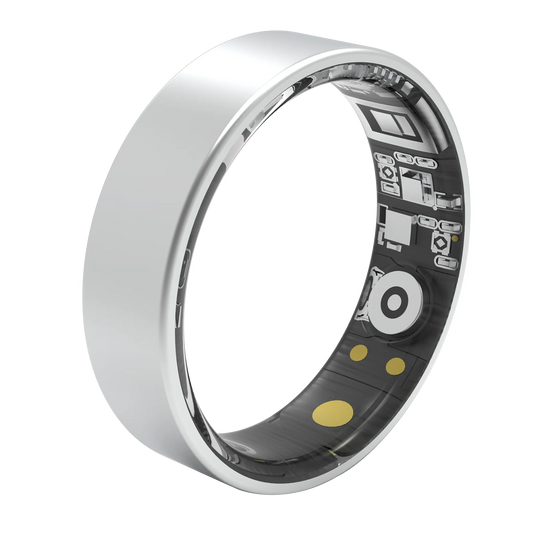
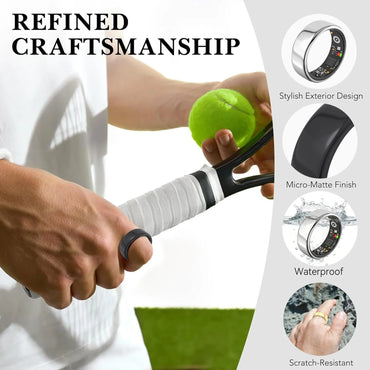
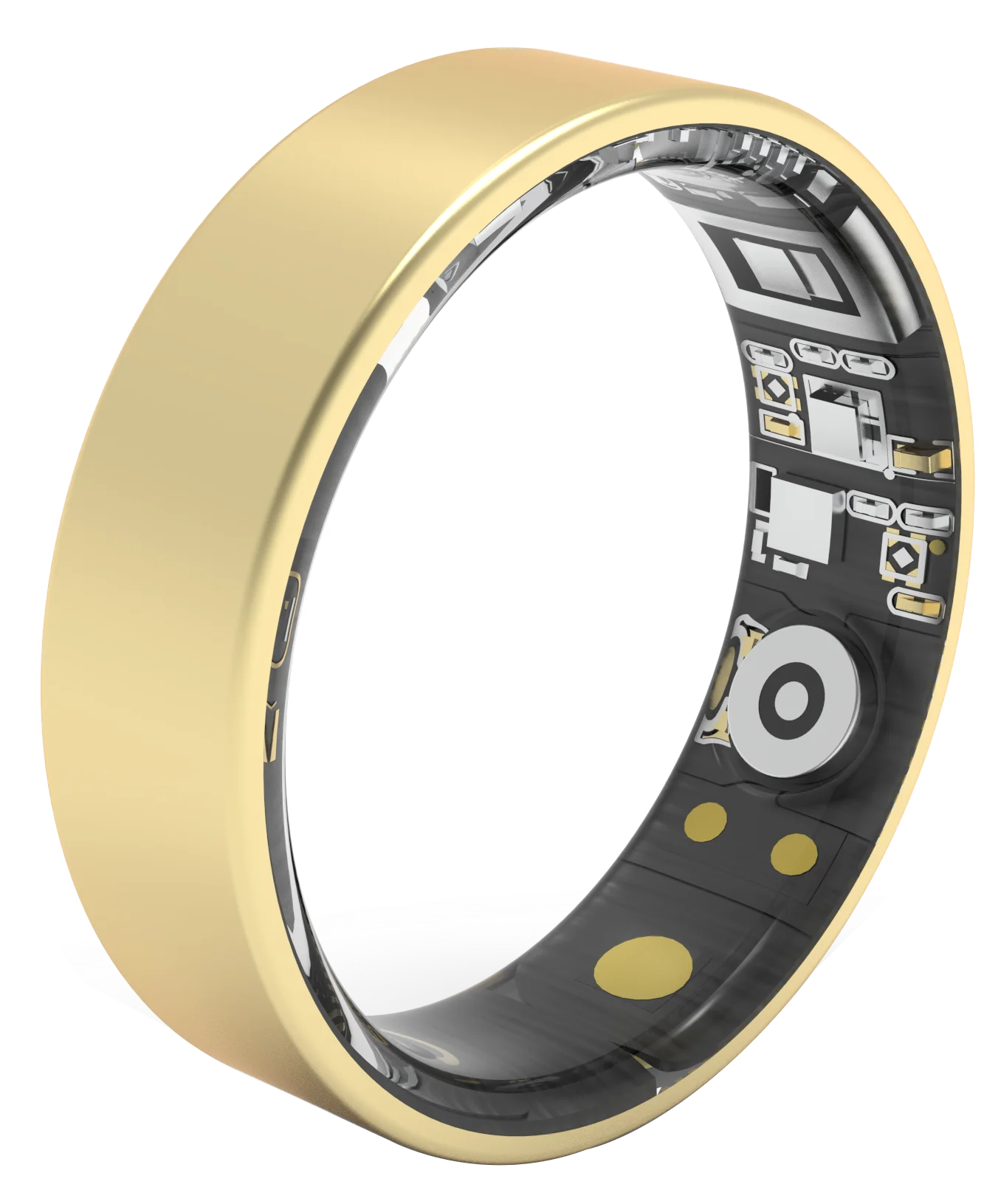
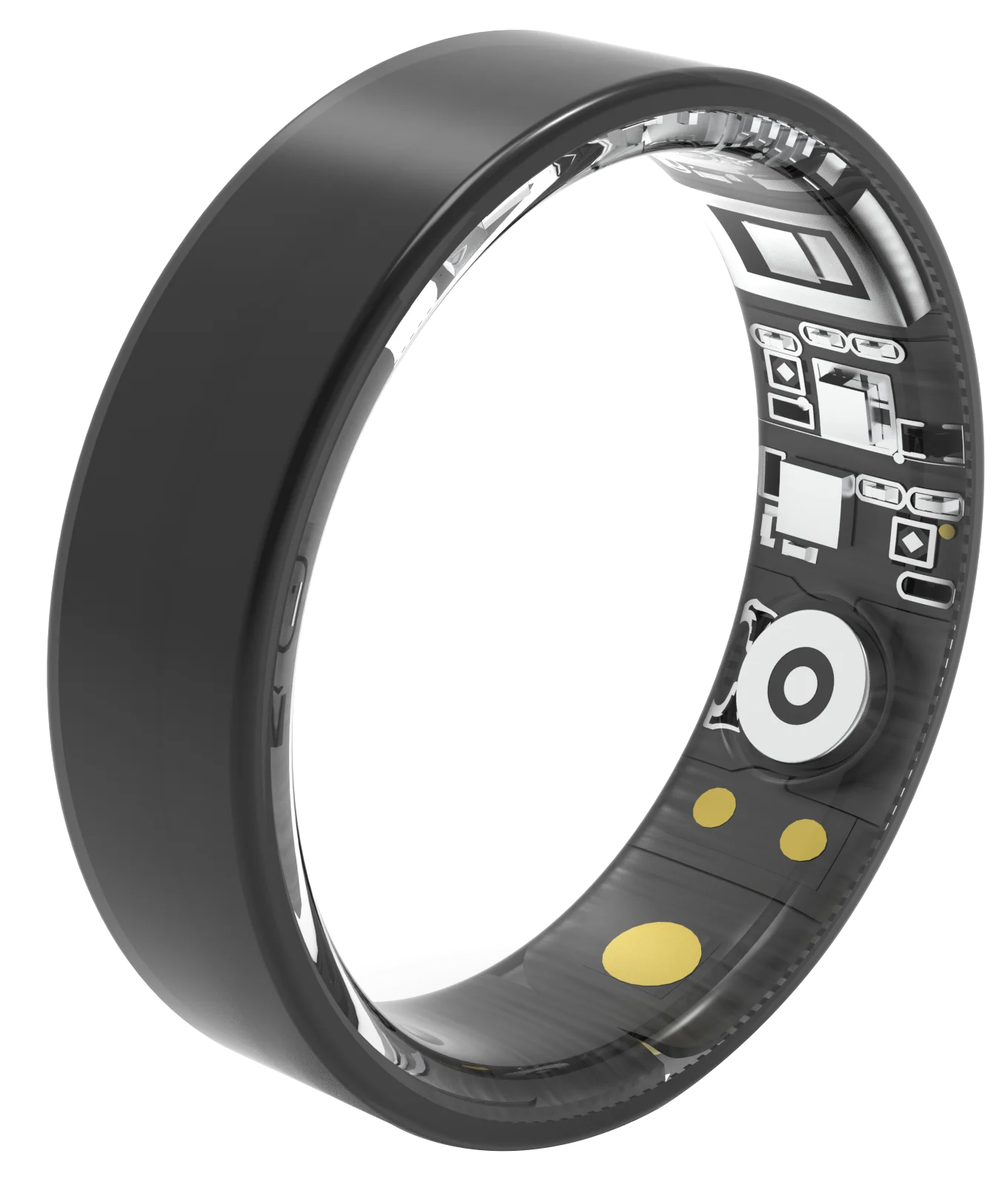


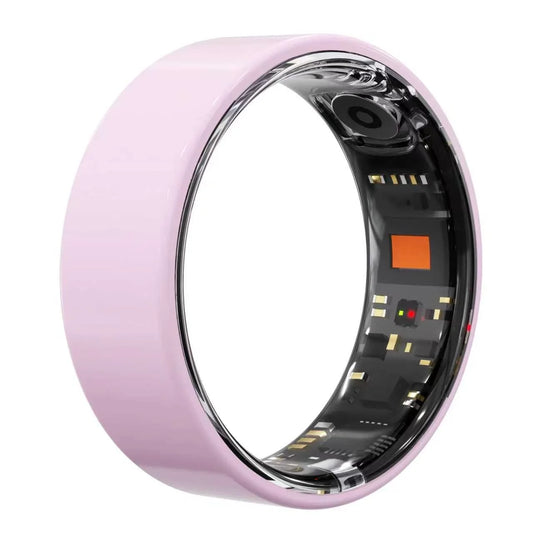
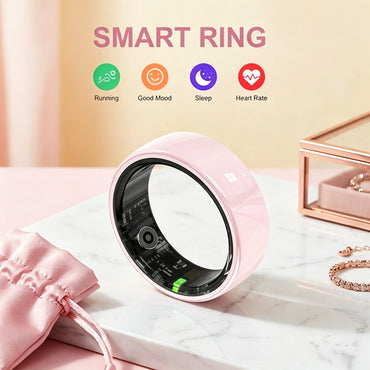
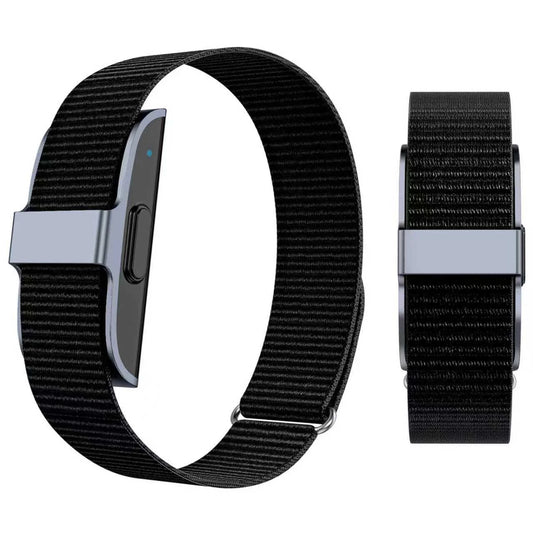
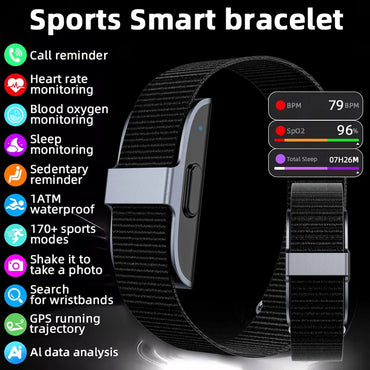
Setup, fit, pairing, charging, health data, firmware, troubleshooting and warranty — for the whole ring line.
Getting started
Unboxing, first charge, how to wear it, what is in the box
• Charge the ring in its case for about 90 minutes before first use — the case indicator turns solid when the ring is full.
• Download the OSAWALLA app, create an account, and keep the ring within 30 cm of the phone.
• Open the app, tap Add device , choose Smart Ring, and confirm the pairing prompt.
• Grant Bluetooth, notifications and (on iPhone) Health permissions when asked. Without the Health permission your sleep stages will not appear on the phone's own health app.
• Wear it for a full 24 hours before judging any metric. The first night calibrates baseline resting heart rate.
• Device model and serial number
• Where you bought it and your order number
• A short video or screenshot showing the problem
• Index, middle or ring finger all work. The ring reads through the base of the finger, so it needs consistent contact.
• Measure the exact finger you intend to use, on the exact hand. A US 8 on the left ring finger is not a US 8 on the right index finger.
• It should feel secure and leave a light mark when you take it off. If it spins freely it is too loose and your readings will be patchy.
• Device model and serial number
• Where you bought it and your order number
• A short video or screenshot showing the problem
• Make sure the ring is charged — a ring below 10% will not advertise for pairing.
• Open the app and go to Devices → Add device .
• Bring the ring next to the phone. It appears within a few seconds.
• If it does not appear, toggle Bluetooth off and on, then restart the app.
• Keep the phone within range of the ring for the first ten minutes while the initial firmware sync completes.
• Device model and serial number
• Where you bought it and your order number
• A short video or screenshot showing the problem
• Solid white — case battery above 30%, ring seated and charging.
• Pulsing white — ring is charging normally.
• Solid red — case battery below 30%. Charge the case itself.
• Fast flashing red — the ring is not seated correctly. Lift it out and drop it back in; the magnets will align it.
• No light — the case has no charge at all, or the ring is already full. Seat the ring and wait ten seconds.
• Device model and serial number
• Where you bought it and your order number
• A short video or screenshot showing the problem
• The ring charges fully in about 90 minutes in the case.
• A 20-minute top-up adds roughly a day of use.
• The case itself charges over USB-C in about 2 hours, and holds between 8 and 20 full ring charges depending on the model you have.
• Device model and serial number
• Where you bought it and your order number
• A short video or screenshot showing the problem
• Open the app and pull down on the home screen to force a sync. Most gaps close here.
• Check the ring has charge. Below 5% the ring stops recording to protect the battery.
• Toggle phone Bluetooth off for ten seconds and back on.
• If it is still not syncing, restart the phone. This clears the stale Bluetooth bond that causes most persistent sync failures.
• Still not syncing after that? Send us the information in the box below.
• Device model and serial number
• Where you bought it and your order number
• A short video or screenshot showing the problem
Size & fit
Sizing chart, how to measure, which finger, what if the fit is wrong
• Open the OSAWALLA app and go to Size & fit for this device.
• This section covers sizing chart, how to measure, which finger, what if the fit is wrong.
• If the app does not show this option, update the app — the feature ships with version 3.2 and later.
• Still stuck? Send us the three items listed below.
• Device model and serial number
• Where you bought it and your order number
• A short video or screenshot showing the problem
• Open the OSAWALLA app and go to Size & fit for this device.
• This section covers sizing chart, how to measure, which finger, what if the fit is wrong.
• If the app does not show this option, update the app — the feature ships with version 3.2 and later.
• Still stuck? Send us the three items listed below.
• Device model and serial number
• Where you bought it and your order number
• A short video or screenshot showing the problem
• Open the OSAWALLA app and go to Size & fit for this device.
• This section covers sizing chart, how to measure, which finger, what if the fit is wrong.
• If the app does not show this option, update the app — the feature ships with version 3.2 and later.
• Still stuck? Send us the three items listed below.
• Device model and serial number
• Where you bought it and your order number
• A short video or screenshot showing the problem
App pairing
Download, pairing, permissions, multiple devices, unpairing
• Open the OSAWALLA app and go to App pairing for this device.
• This section covers download, pairing, permissions, multiple devices, unpairing.
• If the app does not show this option, update the app — the feature ships with version 3.2 and later.
• Still stuck? Send us the three items listed below.
• Device model and serial number
• Where you bought it and your order number
• A short video or screenshot showing the problem
• Open the OSAWALLA app and go to App pairing for this device.
• This section covers download, pairing, permissions, multiple devices, unpairing.
• If the app does not show this option, update the app — the feature ships with version 3.2 and later.
• Still stuck? Send us the three items listed below.
• Device model and serial number
• Where you bought it and your order number
• A short video or screenshot showing the problem
• Open the OSAWALLA app and go to App pairing for this device.
• This section covers download, pairing, permissions, multiple devices, unpairing.
• If the app does not show this option, update the app — the feature ships with version 3.2 and later.
• Still stuck? Send us the three items listed below.
• Device model and serial number
• Where you bought it and your order number
• A short video or screenshot showing the problem
Charging & battery
Case indicator lights, charge times, runtime, charging faults
• Open the OSAWALLA app and go to Charging & battery for this device.
• This section covers case indicator lights, charge times, runtime, charging faults.
• If the app does not show this option, update the app — the feature ships with version 3.2 and later.
• Still stuck? Send us the three items listed below.
• Device model and serial number
• Where you bought it and your order number
• A short video or screenshot showing the problem
• Open the OSAWALLA app and go to Charging & battery for this device.
• This section covers case indicator lights, charge times, runtime, charging faults.
• If the app does not show this option, update the app — the feature ships with version 3.2 and later.
• Still stuck? Send us the three items listed below.
• Device model and serial number
• Where you bought it and your order number
• A short video or screenshot showing the problem
• Open the OSAWALLA app and go to Charging & battery for this device.
• This section covers case indicator lights, charge times, runtime, charging faults.
• If the app does not show this option, update the app — the feature ships with version 3.2 and later.
• Still stuck? Send us the three items listed below.
• Device model and serial number
• Where you bought it and your order number
• A short video or screenshot showing the problem
Health data
Sleep staging, heart rate, SpO₂, HRV, sync frequency, accuracy
• Open the OSAWALLA app and go to Health data for this device.
• This section covers sleep staging, heart rate, spo₂, hrv, sync frequency, accuracy.
• If the app does not show this option, update the app — the feature ships with version 3.2 and later.
• Still stuck? Send us the three items listed below.
• Device model and serial number
• Where you bought it and your order number
• A short video or screenshot showing the problem
• Open the OSAWALLA app and go to Health data for this device.
• This section covers sleep staging, heart rate, spo₂, hrv, sync frequency, accuracy.
• If the app does not show this option, update the app — the feature ships with version 3.2 and later.
• Still stuck? Send us the three items listed below.
• Device model and serial number
• Where you bought it and your order number
• A short video or screenshot showing the problem
• Open the OSAWALLA app and go to Health data for this device.
• This section covers sleep staging, heart rate, spo₂, hrv, sync frequency, accuracy.
• If the app does not show this option, update the app — the feature ships with version 3.2 and later.
• Still stuck? Send us the three items listed below.
• Device model and serial number
• Where you bought it and your order number
• A short video or screenshot showing the problem
Firmware & updates
How updates arrive, what to do when one fails, release notes
• Open the OSAWALLA app and go to Firmware & updates for this device.
• This section covers how updates arrive, what to do when one fails, release notes.
• If the app does not show this option, update the app — the feature ships with version 3.2 and later.
• Still stuck? Send us the three items listed below.
• Device model and serial number
• Where you bought it and your order number
• A short video or screenshot showing the problem
• Open the OSAWALLA app and go to Firmware & updates for this device.
• This section covers how updates arrive, what to do when one fails, release notes.
• If the app does not show this option, update the app — the feature ships with version 3.2 and later.
• Still stuck? Send us the three items listed below.
• Device model and serial number
• Where you bought it and your order number
• A short video or screenshot showing the problem
• Open the OSAWALLA app and go to Firmware & updates for this device.
• This section covers how updates arrive, what to do when one fails, release notes.
• If the app does not show this option, update the app — the feature ships with version 3.2 and later.
• Still stuck? Send us the three items listed below.
• Device model and serial number
• Where you bought it and your order number
• A short video or screenshot showing the problem
Troubleshooting
Won't power on, not syncing, odd readings, how to reset
• Open the OSAWALLA app and go to Troubleshooting for this device.
• This section covers won't power on, not syncing, odd readings, how to reset.
• If the app does not show this option, update the app — the feature ships with version 3.2 and later.
• Still stuck? Send us the three items listed below.
• Device model and serial number
• Where you bought it and your order number
• A short video or screenshot showing the problem
• Open the OSAWALLA app and go to Troubleshooting for this device.
• This section covers won't power on, not syncing, odd readings, how to reset.
• If the app does not show this option, update the app — the feature ships with version 3.2 and later.
• Still stuck? Send us the three items listed below.
• Device model and serial number
• Where you bought it and your order number
• A short video or screenshot showing the problem
• Open the OSAWALLA app and go to Troubleshooting for this device.
• This section covers won't power on, not syncing, odd readings, how to reset.
• If the app does not show this option, update the app — the feature ships with version 3.2 and later.
• Still stuck? Send us the three items listed below.
• Device model and serial number
• Where you bought it and your order number
• A short video or screenshot showing the problem
Warranty & repair
Coverage, term, how to claim, RMA return, exchanges
• Open the OSAWALLA app and go to Warranty & repair for this device.
• This section covers coverage, term, how to claim, rma return, exchanges.
• If the app does not show this option, update the app — the feature ships with version 3.2 and later.
• Still stuck? Send us the three items listed below.
• Device model and serial number
• Where you bought it and your order number
• A short video or screenshot showing the problem
• Open the OSAWALLA app and go to Warranty & repair for this device.
• This section covers coverage, term, how to claim, rma return, exchanges.
• If the app does not show this option, update the app — the feature ships with version 3.2 and later.
• Still stuck? Send us the three items listed below.
• Device model and serial number
• Where you bought it and your order number
• A short video or screenshot showing the problem
• Open the OSAWALLA app and go to Warranty & repair for this device.
• This section covers coverage, term, how to claim, rma return, exchanges.
• If the app does not show this option, update the app — the feature ships with version 3.2 and later.
• Still stuck? Send us the three items listed below.
• Device model and serial number
• Where you bought it and your order number
• A short video or screenshot showing the problem
Send us the device model and serial number, your order number, and a short video of the problem. That is usually enough to resolve it in one reply.
Contact support


